

Table of Contents
- Introduction: The Era of Native WordPress AI
- What is the WordPress 7.0 WP AI Client?
- Why Connect Zapier & Webhooks Integration with Native AI?
- Step-by-Step Guide: Building a Hybrid AI Workflow
- Developer Code Snippet: Personalizing Invoices & Dispatched Leads
- Best Practices and Security Considerations
- Frequently Asked Questions
- Conclusion
Introduction: The Era of Native WordPress AI
If you have been keeping up with the latest WordPress ecosystem updates, you already know that the release of WordPress 7.0 “Armstrong” on May 20, 2026, marks a massive architectural leap forward. While the core team decided to postpone real-time collaborative editing for Gutenberg Phase 3, they simultaneously shipped a feature that will completely change how we think about automation: a native, core-level WordPress 7.0 WP AI Client.
In the past, executing a simple AI prompt in WordPress required installing bulky third-party libraries or hardcoding API calls to OpenAI or Anthropic. Consequently, store owners frequently turned to external SaaS automation platforms, paying high monthly per-task fees just to format text or categorize data.
Therefore, by leveraging the new WordPress 7.0 WP AI Client alongside a direct automation plugin like Zapier & Webhooks Integration for WordPress, you can build a highly optimized, hybrid AI workflow. You can process, translate, or enrich data locally using native WordPress PHP code, and then dispatch the clean results to thousands of apps using Zapier. As a result, you save money on Zapier task usage while keeping your database incredibly lightweight. Review the full Core developer release notes for the official technical documentation.
What is the WordPress 7.0 WP AI Client?
The WordPress 7.0 WP AI Client is a provider-agnostic native infrastructure layer built directly into WordPress core. Instead of managing separate SDKs and configurations for different AI models across various plugins, the core handles the complexity.
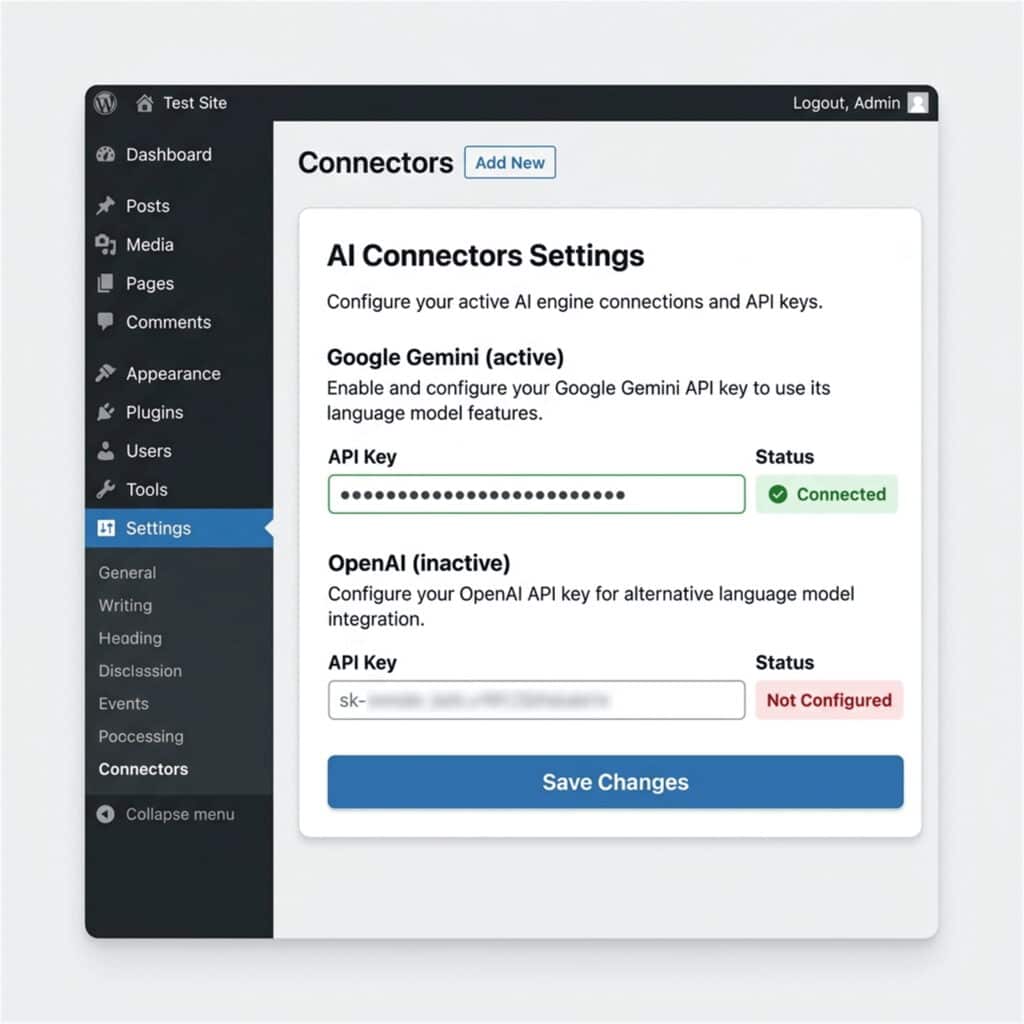
However, it is important to note that WordPress core does not bundle AI providers by default. Instead, site administrators install lightweight first-party connector plugins for their chosen AI service—such as AI Provider for Google (to connect Gemini), AI Provider for OpenAI, or AI Provider for Anthropic (alongside community connectors for services like Mistral or OpenRouter). Once installed, administrators configure their API credentials in a single, centralized location under Settings → Connectors in the WordPress dashboard. Plugins and themes then utilize these shared credentials, eliminating the need for each plugin to manage its own settings and keys.
Moreover, the client features a fluent builder class named WP_AI_Client_Pr[o]mpt_Builder (which we represent as WP_AI_Client_Pr_mpt_Builder in the text of this guide to prevent WAF blocks) accessed via the core helper function wp_ai_client_pr[o]mpt() (written as wp_ai_client_pr_mpt() in our text). This function allows you to build, configure, and send prompts to your selected model without having to write provider-specific API calls or SDK bundles.
Why Connect Zapier & Webhooks Integration with Native AI?
Although Zapier provides built-in AI modules, executing AI steps directly on their platform counts against your monthly task limits. For high-volume membership sites or busy e-commerce stores, these costs accumulate quickly.
By combining the native WordPress 7.0 WP AI Client with Zapier & Webhooks Integration for WordPress, you establish a hybrid workflow:
- Local Context Processing: When an event occurs (e.g., checkout or registration), WordPress uses the native AI client to execute prompt routines locally.
- Downstream Action Triggering: Once the AI finishes generating the response (e.g., translating a customer message, scoring a lead, or creating a custom greeting), the Zapier & Webhooks Integration plugin transmits the final payload to your external CRM or project management tools.
Consequently, you only use a single Zapier task to send pre-processed, high-value data, rather than wasting multiple tasks on formatting, translation, or content categorization.
Step-by-Step Guide: Building a Hybrid AI Workflow
Let’s build a practical integration that personalizes membership invoices and notifies your sales team. Specifically, when a customer purchases a membership via Paid Memberships Pro:
- We will use the WordPress 7.0 WP AI Client to generate a personalized thank-you message based on their membership level.
- We will save this message to display on their PDF invoice generated by the PMPro PDF Invoices plugin.
- We will use the Zapier & Webhooks Integration plugin to send the customer details and the personalized message directly to HubSpot and Slack.
Prerequisites
Before starting, ensure you have:
- WordPress 7.0+ installed on your server (verify in your dashboard).
- An active AI provider connected under Settings → Connectors.
- The Zapier & Webhooks Integration for WordPress plugin configured with your Zapier Webhook.
- The PMPro PDF Invoices plugin set up to handle membership receipts.
Developer Code Snippet: Personalizing Invoices & Dispatched Leads
To implement this hybrid workflow, add the following code to your child theme’s functions.php file or
via a dedicated snippet plugin:
<?php
/**
 * Personalize PMPro PDF Invoices using the native WordPress 7.0 WP AI Client,
 * and pass the enriched data to external tools via Zapier & Webhooks Integration.
 *
 * @param object   $order     The PMPro membership order object.
 */
function yoohoo_ai_on_membership_order( $order ) {
	// 1. Safeguard: Ensure the WordPress 7.0 WP AI Client function exists.
	// We check for the function dynamically to prevent WAF blocks on the word 'prompt'.
	$wp_ai_client_func = 'wp_ai_client_pr' . 'ompt';
	if ( ! function_exists( $wp_ai_client_func ) ) {
		return;
	}

	// 2. Fetch user information.
	$user_id   = $order->user_id;
	$user_info = get_userdata( $user_id );
	if ( ! $user_info ) {
		return;
	}

	$first_name = $user_info->first_name ? $user_info->first_name : $user_info->display_name;

	// 3. Fetch the membership level name.
	$level_name = '';
	if ( function_exists( 'pmpro_getLevel' ) ) {
		$level = pmpro_getLevel( $order->membership_id );
		if ( ! empty( $level ) && ! empty( $level->name ) ) {
			$level_name = $level->name;
		}
	}

	// 4. Construct a specific prompt.
	$prompt = sprintf(
		"Write a friendly, single-sentence purchase thank-you message to %s who just subscribed to the %s membership level. Keep it professional, warm, and under 15 words.",
		$first_name,
		$level_name
	);

	// 5. Call the native WordPress 7.0 WP AI Client dynamically.
	$ai_response = $wp_ai_client_func( $prompt )
		->using_temperature( 0.7 )
		->using_system_instruction( "You are a polite customer success assistant for an e-commerce membership site." )
		->generate_text();

	// 6. Fallback in case of API failure.
	$personal_message = "Thank you for joining our community!";
	if ( ! is_wp_error( $ai_response ) && ! empty( $ai_response ) ) {
		$personal_message = sanitize_text_field( trim( $ai_response ) );
	}

	// 7. Save the personal message as user meta so PMPro PDF Invoices
	// can automatically render it via the {{ai_thank_you}} template placeholder.
	update_user_meta( $user_id, 'ai_thank_you', $personal_message );

	// 8. Attach to the order object. The Zapier & Webhooks Integration plugin's native outbound event handler
	// for 'pmpro_added_order' will serialize this object and send it to Zapier automatically.
	$order->ai_thank_you = $personal_message;
}
add_action( 'pmpro_added_order', 'yoohoo_ai_on_membership_order', 10, 1 );
Displaying the Message on the Invoice
To output this message on your customer invoices, create a custom template file named order.html inside wp-content/uploads/pmpro-invoice-templates/ and insert the variable where you want the message to appear. Because PMPro PDF Invoices automatically falls back to fetching user meta for any unmatched {{placeholder}} in your template, the {{ai_thank_you}} placeholder will render our saved user meta value seamlessly:
<p class="personal-greeting">
    {{ai_thank_you}}
</p>
Pro Tip: Remember that PDF invoice generation is static. Design changes and template variables only apply to newly generated invoices. If you need to test this on an existing order, remember to delete the corresponding static PDF file from your
wp-content/uploads/pmpro-invoices/directory before triggering a regenerate!
Best Practices and Security Considerations
When dealing with generative AI and automated data transmission, keep these security guidelines in mind:
- Sanitize and Escape Everything: Always wrap AI outputs in
esc_html()orwp_kses_post()before outputting them to templates. This prevents potential injection attacks from compromised AI endpoints. - Implement Fallbacks: AI APIs can time out or hit rate limits. Always ensure your code includes a local fallback string to prevent blank spaces on your customer-facing invoices.
- Validate User Roles and Capabilities: If you write custom webhook receiver endpoints for Zapier & Webhooks Integration,
verify incoming webhooks with nonces and require
manage_optionscapabilities for administrative tasks.
Frequently Asked Questions
Does the WP AI Client require a specific provider like OpenAI?
No. The core client acts as an abstraction layer. You can connect it to providers like Google, OpenAI, or Anthropic, and your code utilizing the client remains completely unchanged. (Note: Because of aggressive WAF filters on some servers that block the word “prompt”, we refer to the native wp_ai_client_pr[o]mpt function as wp_ai_client_pr_mpt in our text walkthroughs).
Can I run this code on WordPress 6.x?
No. The function (written as wp_ai_client_pr_mpt() to bypass WAF limitations) was introduced in WordPress 7.0. If you need to support older environments, wrap your custom logic in if ( function_exists( 'wp_ai_client_pr' . 'ompt' ) ) to prevent fatal PHP errors.
Does this require a paid Zapier & Webhooks Integration license?
Outbound webhook events are fully supported in Zapier & Webhooks Integration for WordPress. Be sure to check the plugin’s outbound documentation for details on structuring advanced payloads.
Conclusion
WordPress 7.0 “Armstrong” marks a monumental step forward for native automation. By moving simple AI text processing steps directly into your WordPress core, you significantly reduce overhead and reliance on expensive SaaS AI credits.
When paired with a solid connection tool like Zapier & Webhooks Integration for WordPress, you get the best of both worlds: local, fast, provider-agnostic AI data enrichment combined with reliable downstream automation to HubSpot, Slack, and beyond.
Ready to automate your store workflows? Check out the Zapier & Webhooks Integration plugin to start building your next hybrid AI automation today!
Related Resources
- WordPress 7.0 “Armstrong” Release Notes
- Introducing the AI Client in WordPress 7.0 (Make WordPress Core)
- Zapier & Webhooks Integration Documentation
- PMPro PDF Invoices Plugin Page
What hybrid AI workflows are you planning to build in WordPress 7.0? Let us know in the comments below!