
Table of Contents
- Before you start
- Prepare a readable logo file
- Select and save the invoice logo
- Check the logo placeholder in your template
- Download a fresh sample PDF
- Decide separately about existing invoices
- If the logo is missing or looks wrong
- Conclusion
Your PMPro PDF invoice logo comes from the PDF Invoices settings and the template used to build the document. Choosing a picture is one part of the setup. The template also needs a place to display it.
This guide takes you through selecting the logo, checking that template placeholder, and opening a fresh sample. It also explains why an invoice you downloaded last week can still show the old branding. You can do the basic setup without changing plugin files.
Before you start
You need Paid Memberships Pro and Yoohoo’s PDF Invoices plugin active, access to its settings, and a logo you are allowed to use. The menu and button names below follow the official source marked version 2.2, checked on 22 October 2026.
Use a staging site if you need to change a customised template or create test orders. Keep a copy of the current logo and template before replacing them. If your invoices already have a carefully designed layout, you only need to check the logo area; you do not need to start the design again.
For the rest of the invoice layout, use the template creation and editing guide. For member details, the separate billing-address walkthrough explains the relevant fields.
1. Prepare a readable logo file
Start with a PNG or JPEG version of your logo. A simple image with clear edges is easier to check than a large artwork file with lots of empty space. A transparent PNG can be useful on a light invoice; a JPEG with a white background can be a practical alternative.
Check the actual image content as well as its pixel dimensions. Large transparent margins can make the visible logo look small even when the file itself is wide. Crop unnecessary space in your normal image editor, and keep an untouched original.
You can upload the image through Media → Add New or choose an existing file when you open the logo selector. WordPress’s Media Library guide explains how to find an uploaded item and inspect its attachment details. Use the logo image itself, rather than a link to a web page containing it.
2. Select and save the invoice logo
- In WordPress, open Memberships → PDF Invoices.
- Open the Settings tab and find Invoice Logo.
- Beside Logo Image, click Select Image and choose your logo in the media window.
- Click Save Settings on the plugin screen.
- Reopen the Settings tab and confirm that the selected image is still shown.
Selecting an image in the media window and saving the plugin settings are separate actions. If the selection disappears when you return to the page, check that you completed the save before moving on.
Older documentation and installations may show Settings → PMPro PDF Invoices. The current source places the page under Memberships when PMPro is active. Use your installed version’s screen, and check its version before assuming a missing menu means the feature has disappeared.
This is the plugin’s invoice-logo setting. Changing the site logo in your theme does not select this separate image for you.
3. Check the logo placeholder in your template
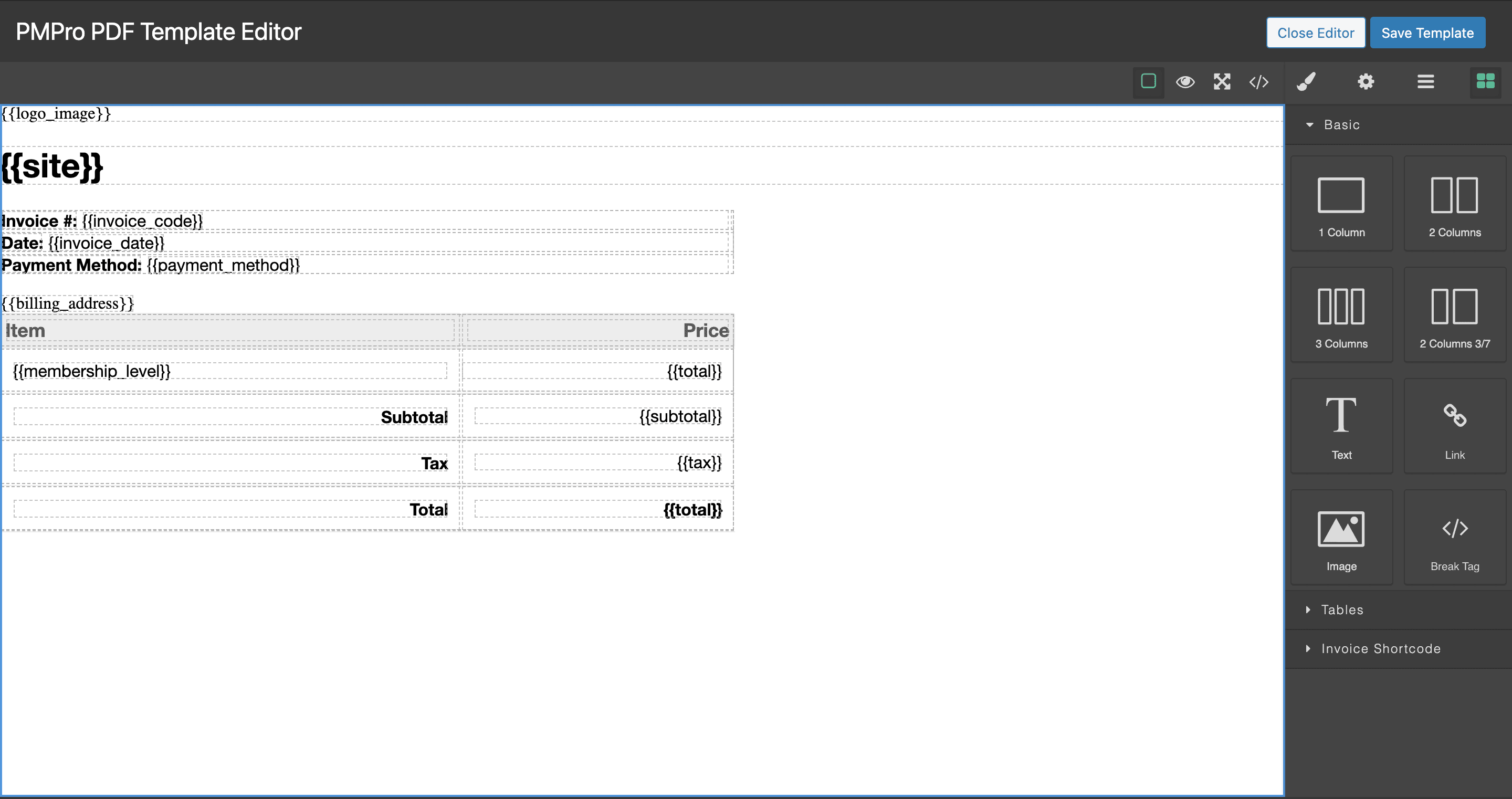
The template placeholder is {{logo_image}}. When the PDF is generated, the plugin replaces that exact text with an image element using the saved logo URL. If no logo is selected, the replacement is empty.
The bundled Default template already includes this placeholder. If your fresh sample displays the logo correctly, leave the template alone. A custom layout, or a blank starting template, may need the placeholder added.
- Open the Tools tab. If you use a custom template, back up its current content first.
- Open Edit Template, or Create Template if you are deliberately creating your first custom layout.
- Look for
{{logo_image}}where the logo should appear. If it is missing, add that exact text in a text area of the invoice layout. - Save the template, then download a new sample as described below.
Keep the braces and lowercase spelling exactly as shown. The placeholder supplies the image element itself, so do not put it inside another image element’s source field.
Do not select another built-in template or reset your template just to make the logo appear. Selecting a built-in design replaces the current custom template, and resetting removes the custom file. Those actions can discard changes unrelated to the logo.
4. Download a fresh sample PDF
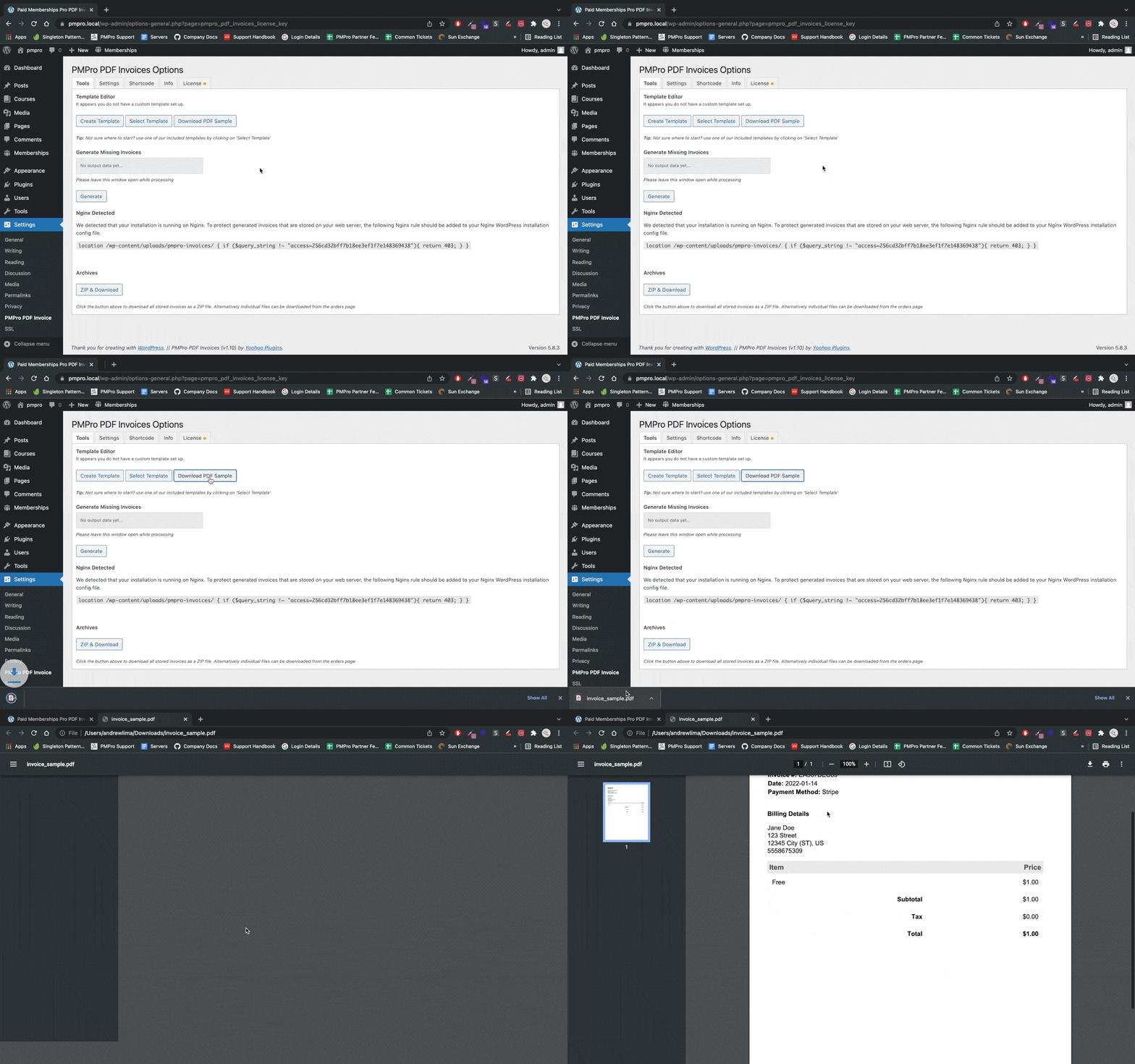
- Return to the Tools tab.
- Click Download Sample PDF.
- Open the newly downloaded file and check the logo’s clarity, position and spacing.
- If you change the image or template again, save that change and download another sample.
The sample uses dummy order data. It is useful for checking the design without changing a real customer’s order, but it does not prove that every real order contains the right billing information.
Make sure you open the newest download. A PDF already open in another browser tab or saved in your Downloads folder does not change when you save a different logo.
Once the sample looks right, generate an invoice from a new test order on staging and check the result there too. A successful sample and a successful order invoice answer different questions: the first checks the design, while the second also checks your order workflow.
5. Decide separately about existing invoices
Saving a logo or template does not automatically rebuild every PDF that has already been stored. That is why a fresh sample can look correct while an older downloaded invoice still has the previous logo.
Generate Missing Invoices skips orders that already have a PDF. It is not the tool for replacing a logo inside those existing files.
The current Tools screen also offers Regenerate All Invoices. That operation overwrites existing PDFs. Leave it alone if your aim is simply to brand invoices generated from now on. If you decide that historical files must also change, preserve the existing files and template first, check the result on staging, and plan that wider operation separately.
Avoid changing customer order details merely to try to refresh a logo. Check the sample first, then choose an intentional regeneration workflow if one is actually needed.
If the logo is missing or looks wrong
- No logo in Settings: select the image again, save the settings and reopen the page.
- Selected image, blank PDF area: check that the active template contains
{{logo_image}}, with the correct spelling and braces. - Sample correct, old invoice wrong: check whether you are opening a PDF generated before the change.
- Logo too small: inspect empty space inside the image file before increasing its dimensions or changing the template.
- Image fails only during PDF generation: check whether the server can retrieve the saved image URL.
An image opening in your signed-in browser does not necessarily mean the PDF renderer can fetch it. A login requirement, a blocked request or a server configuration issue can still prevent it loading. Use a normal logo asset; do not make private invoices publicly accessible as a workaround.
The plugin uses Dompdf for PDF rendering. Its documented image and remote-file requirements explain why a host may need to check image-processing support and remote access. Ask your host or Yoohoo support to diagnose a failed fetch rather than disabling site protections.
If you contact support, include your plugin version, whether the saved logo remains visible in Settings, and whether a newly downloaded sample shows it. That makes it much easier to separate a setting, template, file-access or old-PDF issue.
Conclusion
To add your logo, save the image in Invoice Logo, make sure the template contains {{logo_image}}, and check a fresh sample PDF. Then verify a new test invoice before relying on the change in your normal workflow.
Keep existing PDFs as a separate decision. With those checks complete, your PMPro PDF Invoices setup can use the selected logo whenever a new PDF is generated from that template.