

Table of Contents
- What you need
- Where the address is stored
- Use the ready-made block
- Place the lines yourself
- Account name and billing name
- When the address stays blank
- Rebuild invoices that already exist
- Common mistakes
- Conclusion
A PMPro PDF billing address is the address stored on the membership order, printed into the PDF by PMPro PDF Invoices. The bundled Default, Corporate, Green, and Split templates already include {{billing_address}}. Blank does not. This walkthrough shows where that block comes from, how to place the lines yourself, and why an old PDF can keep the previous address after you edit the template.
The variable list lives on Display Member’s Billing Address Fields in Paid Memberships Pro PDF. That page is the reference for the token names. The checks below are from the PDF Invoices 2.0 generator in this project, the same replacements in the 2.1 alignment copy, and the public 2.2 release notes from 28 September 2026. Version 2.2 does not change these billing tokens. Install 2.2 before you rely on them: 2.0 is the release that fixed order billing details not coming through, and 2.2 is the current public release.
What you need
- A self-hosted WordPress site with Paid Memberships Pro active.
- PMPro PDF Invoices 2.2, installed and licensed. The settings screen is Memberships → PDF Invoices. The page title is PMPro PDF Invoices, and it opens on the Tools tab. The template article still says Settings → PMPro PDF Invoices. That is the fallback label from before 2.0 moved the screen under Memberships.
- An order that actually stored a billing name. Open Memberships → Orders and look at the billing block on a real order before you change the template.
Where the address is stored
Paid Memberships Pro keeps a billing address on the order when checkout collects one. The MemberOrder class documents that object as billing->name, street, street2, city, state, zip, country, and phone. Country is the stored value, usually an ISO code such as US.
That is not the same record as a physical or mailing address. PMPro’s address guide says a billing address belongs to the payment on that order, while a physical or mailing address is stored on the WordPress user. A user-field placeholder such as {{company}} reads user meta. It does not read the order’s billing columns. User fields are covered in Adding User Fields to Paid Memberships Pro PDF Invoices.
The billing-address documentation says “Paid Memberships Pro V1.2+” next to the separate tokens. Those tokens are filled by PDF Invoices, not by a PMPro 1.2 setting. Use the lowercase names in the table on that page, plus {{billing_address}} and {{billing_name}} from the getting started template tags. The public billing table lists {{full_name}}, {{first_name}}, and {{last_name}} and leaves out {{billing_name}}. Those three name tokens are the WordPress account. The difference is under Account name and billing name.
Use the ready-made block
{{billing_address}} prints one block, and only when the billing name is not empty. In the 2.0 generator the block is:
- a Billing Details heading
- the billing name
- street and street 2 on one line, with a comma between them
- postal code, city, state in parentheses, and country
- phone
An empty street 2 still leaves the comma after the street. The plugin reads the loaded order’s billing object first, then the order row passed into PDF generation.
On a site with no custom template, the bundled order.html already contains {{billing_address}}. Corporate, Green, and Split do too. Blank does not.
- Go to Memberships → PDF Invoices. Stay on Tools.
- In Invoice Template, click Download Sample PDF.
- Look for Billing Details, then Jane Doe, 123 Street, Apt 1, 12345 City (ST), US, and 5558675309.
That sample is Paid Memberships Pro’s own test order, from MemberOrder::get_test_order() on the current PMPro source. The sample date is today’s date, because a sample download does not use an order timestamp. The account name on the same sample is the logged-in administrator, not Jane Doe.
If the sample has no billing block, you are on Blank, or a custom order.html never received the token. Click Edit Template if a custom file exists, or Create Template if the screen still says the default template is in use. Put {{billing_address}} where the address should sit, click Save Template, and download the sample again.
{{billing_address}}
Place the lines yourself
The separate tokens print one stored field each. They still print when the billing name is empty, which the ready-made block does not. Use them when you want your own heading, or when you want to skip a line that is often blank.
<p><strong>Bill to</strong></p>
<p>{{billing_name}}<br>
{{billing_street}}<br>
{{billing_street2}}<br>
{{billing_city}} {{billing_state}} {{billing_zip}}<br>
{{billing_country}}<br>
{{billing_phone}}</p>
| What you want | Token |
|---|---|
| The whole block, including the Billing Details heading | {{billing_address}} |
| Checkout billing name | {{billing_name}} |
| Address line 1 | {{billing_street}} |
| Address line 2 | {{billing_street2}} |
| City, state, postal code, country, phone | {{billing_city}}, {{billing_state}}, {{billing_zip}}, {{billing_country}}, {{billing_phone}} |
Keep the template as simple HTML. Dompdf, which renders these PDFs, handles paragraphs, line breaks, and tables more reliably than flexbox or grid. The template guide is the place for Create, Edit, and Select. There is one custom file: wp-content/uploads/pmpro-invoice-templates/order.html.
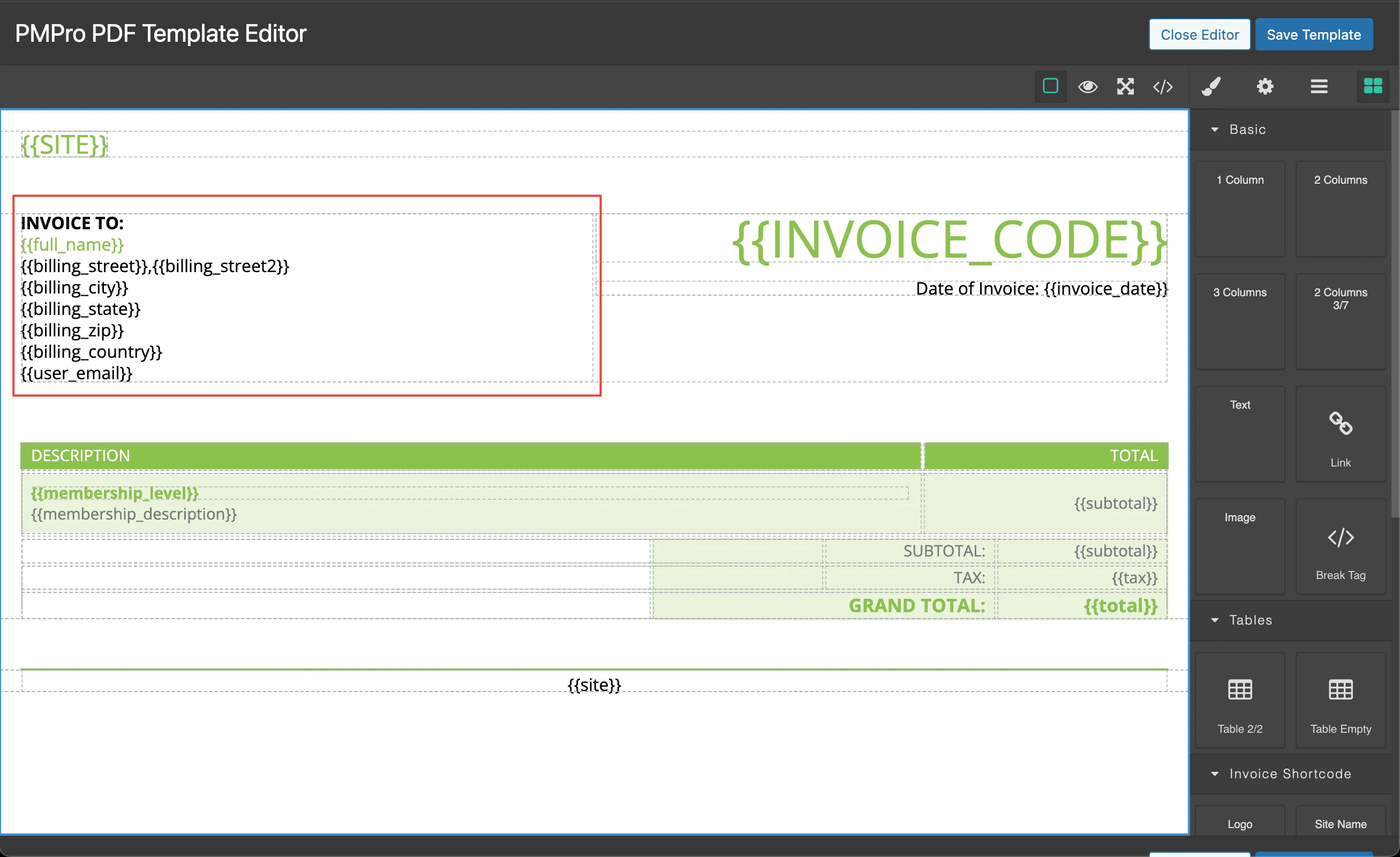
The red box in that March 2023 screenshot is a useful layout. Copy the idea, not every token in the picture. {{INVOICE_CODE}} and {{SITE}} are the wrong case. The working tokens are {{invoice_code}} and {{site}}. Replacement is case-sensitive, so the uppercase pair is left for a user-meta lookup and usually prints blank.
Account name and billing name
{{full_name}} is the member’s WordPress first name and last name. {{first_name}} and {{last_name}} are those same profile fields. {{billing_name}} is the name typed into billing at checkout.
On the sample PDF those two names are different on purpose. Billing says Jane Doe. {{full_name}} follows the administrator who clicked Download Sample PDF. On a real order they can differ too: the account can be “Alex Rivera” while the card billing name is a company or another person.
The billing-address documentation lists Full Name as {{full_name}}. Use that when you want the account. Use {{billing_name}} when you want the checkout billing name. The screenshot’s address box uses {{full_name}}, so it is not a picture of {{billing_name}}.
When the address stays blank
{{billing_address}} is an empty string when the billing name is empty, even if a street was saved. Check the order in Memberships → Orders before you edit the template again.
Paid Memberships Pro collects billing details for paid levels that use an onsite gateway. A free level, or an offsite gateway such as PayPal Express, often stores no billing address unless you add Capture Name and Address for Free Levels or Offsite Gateways. A physical-address user field will not fill {{billing_street}}.
If only some lines are missing, the gateway did not send them. The separate token for that line prints nothing. It does not fall back to the user’s profile address.
Rebuild invoices that already exist
Saving the template does not rebuild PDFs that are already on disk. PDF Invoices writes each invoice once. A later template edit applies to new files and to files you regenerate.
After the sample looks right:
- On Tools, under Generate Invoices, click Regenerate All Invoices if every stored PDF should pick up the new address block.
- Leave the tab open until the progress line finishes. Generate Missing Invoices skips orders that already have a file, so it will not refresh an old address.
- Open one real order that has a billing name and download its PDF.
Updating an order can also rebuild that one PDF, and only when PDF-related order data changed. In the 2.0 generator the comparison includes billing name, street, city, state, postal code, country, and phone. It does not include address line 2. A street-2-only edit can leave the old file in place. Use Regenerate All Invoices after a template change, or after an address line 2 correction.
Select Built-in Template overwrites order.html with the design you pick. Reset to Default deletes the custom file. Either one can remove the address block you just added. Download a sample before you regenerate the library.
Common mistakes
- Copying
{{INVOICE_CODE}}or{{SITE}}from the March 2023 screenshot. Use{{invoice_code}}and{{site}}. - Expecting
{{full_name}}to match the cardholder. That token is the WordPress account. - Testing only with Download Sample PDF and treating Jane Doe as a broken merge. That name is the test order. Confirm a real order next.
- Choosing Blank, or clicking Select Built-in Template after a custom edit, and then wondering where the address went.
- Looking at an old PDF after a template save. The stored file keeps the previous layout until you regenerate it.
- Putting a user-meta key such as a company field into
{{billing_city}}. Billing tokens read the order. Custom user fields use their own meta key, as in How to add custom fields to PMPro PDF Invoices.
Conclusion
Start with Download Sample PDF. If Jane Doe’s address is in the right place, the template is ready and the remaining work is to regenerate real invoices. If the block is missing, add {{billing_address}}, or lay out {{billing_name}} and the street, city, state, postal code, country, and phone tokens yourself.
The billing-address documentation stays the token list. This article is the current click-path for PDF Invoices 2.2, including the account-name mix-up in the public table and the screenshot. For a field that is not on the order, use the user fields guide instead of a billing token.