
Adding User Fields to Paid Memberships Pro PDF Invoices
PDF Invoices
Paid Memberships Pro PDF Invoices can print a member’s User Field, or any other user meta value, with a placeholder. Use the field name, not the label. No code is required.
Add a placeholder
In the PDF template, use two opening braces, the field name, and two closing braces:
{{birthday}}
Replace birthday with the Name value from User Fields. When the invoice is generated, the plugin prints that member’s value. A wrong name, or an empty field, prints blank.
- Go to Settings → PMPro PDF Invoices.
- Open the Tools tab.
- Click Create Template, or Edit Template if a custom template already exists.
- Place the placeholder where the value should print, then save.
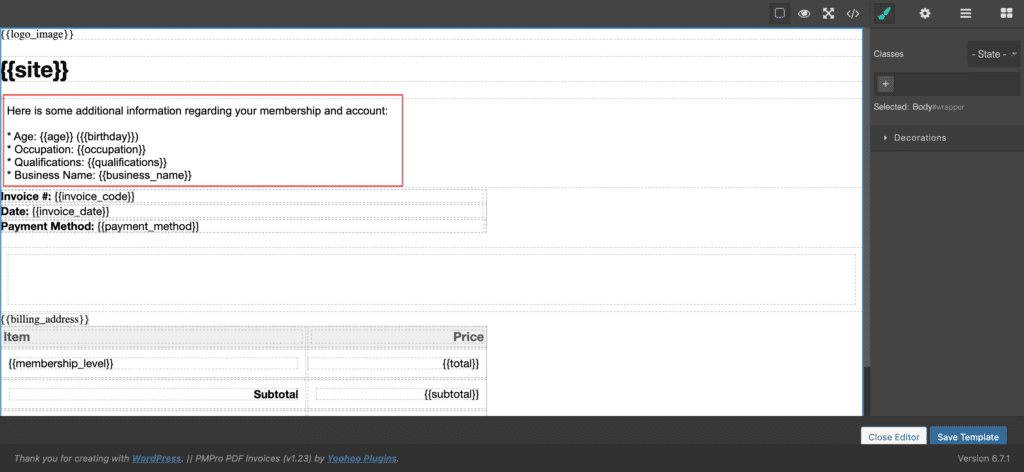
Edit Template only appears after a custom template file exists. If you only see Create Template, you are still on the plugin default. Saving the template does not rewrite PDFs already stored. Button details are in Create, edit, and select a template.
Find the field name
- Go to Memberships → Settings → User Fields.
- Find the field in the list.
- Copy the Name column. Do not use the label.
| Label | Name | Placeholder |
|---|---|---|
| Birthday | birthday | {{birthday}} |
| Company | company | {{company}} |
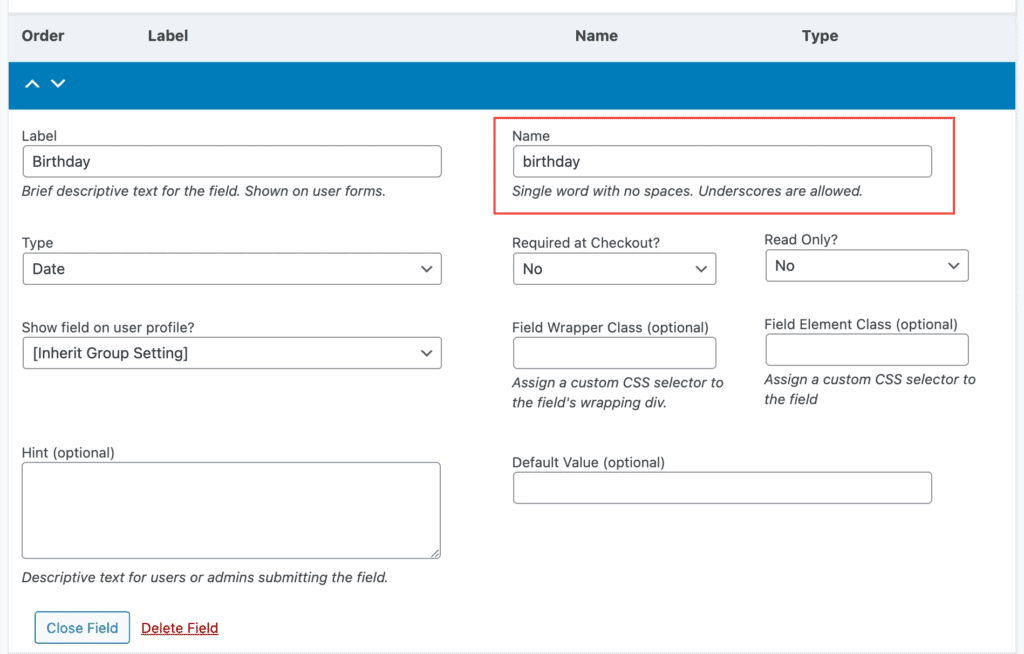
User Field names do not include spaces. They are case-sensitive and often use underscores. A matching {{meta_key}} also fills other user meta. The filter is still valid for user meta that is not a User Field when you need to format or rename it. A field that stores several values, such as checkboxes, prints as a comma-separated list.
Which placeholder to use
| Source | Placeholder | Code required |
|---|---|---|
| User Fields | {{field_name}} | No |
| Other user meta | {{meta_key}} | No, unless you need to format or rename it. The filter is still valid for that. |
| Built-in member, billing, and order data | {{invoice_code}}, {{billing_address}}, and others | No |
| Order notes, order meta, or a custom table | A token you register with pmpro_pdf_invoice_custom_variables | Yes |
Billing tokens are listed in Display billing address fields.
Common mistakes
Using the label instead of the name
Labels can include spaces and mixed case. Placeholders need the Name value.
Fix: Copy the Name column, for example birthday, then use {{birthday}}.
Broken or mistyped braces
A missing brace, a space inside the name, or the wrong key prints nothing on the PDF.
Fix: Use exactly {{field_name}}, with two opening braces, two closing braces, and no spaces.
Edit Template is missing
The editor button only loads after a custom template file exists.
Fix: Open Settings → PMPro PDF Invoices → Tools. Click Create Template if you have not saved one yet.
Reusing a built-in placeholder name
Names such as first_name, invoice_code, and billing_city are already filled by the plugin. A User Field with the same name is ignored.
Fix: Give the User Field its own name, such as company, and use {{company}}.
When to use code
The filter is still valid for user meta that is not a User Field, and it is required for order notes, order meta, and custom tables. Use the code sample for adding custom fields to PMPro PDF Invoices.