

Table of Contents
- What you need
- 1. Choose the event you actually want
- 2. Add a rule in Conditional Dispatch
- 3. Add a second condition with AND
- 4. Check a match and two non-matches
- When the result is different from what you expected
- Change or remove a rule deliberately
- Conclusion
WP Zapier conditional logic checks an event before its webhook is sent. You choose a field, a comparison, and a value. If the saved conditions pass, the event can continue to the receiving service. If a condition fails, that event is skipped.
This guide walks through one small registration rule, adds a second condition, and gives you three clear test cases. It follows the WP Zapier & Webhooks Integration product documentation and the local source copy marked 2.4.1, checked on 20 October 2026. The public product page also lists 2.4.1. The source inspection is not a live installation test.
What you need
Use a WordPress site with WP Zapier active, a separate test destination, and permission to create test users. Start with a test site or an isolated event so your trial registrations do not run an unrelated customer workflow.
The conditional-logic documentation explains that conditions are available from version 2.3 and that multiple rows are joined with AND. In the inspected 2.4.1 source, the editor calls this box Conditional Dispatch.
If you still need the receiving workflow, use our WordPress-to-Mailchimp walkthrough or WordPress-to-Zoho CRM guide. This article concentrates on the decision inside WordPress, before a request is sent.
1. Choose the event you actually want
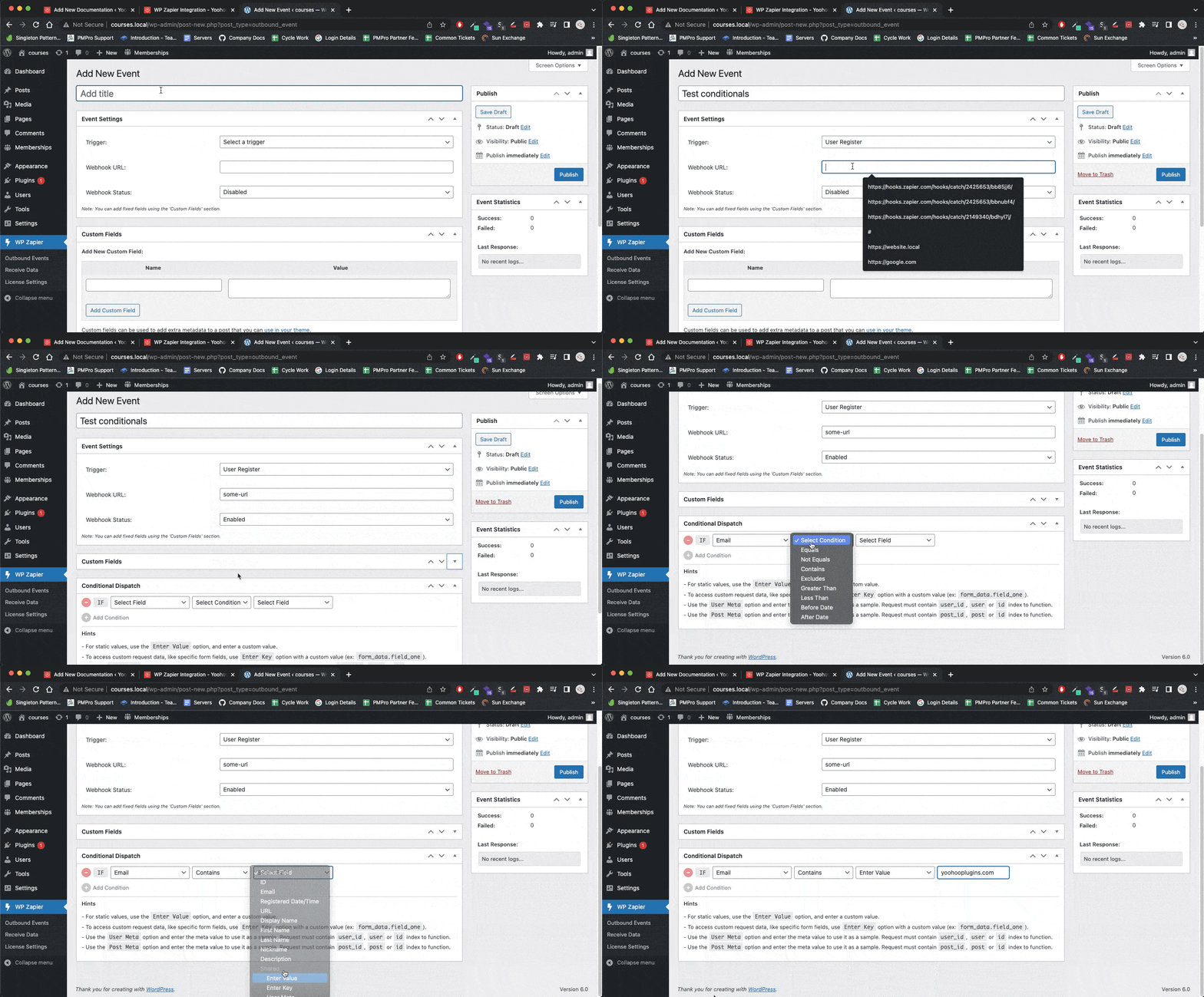
- Open WP Zapier → Outbound Events. Add a separate test event or edit the intended existing event.
- In Event Settings, choose User Register. This example checks a newly created account, so User Login would be the wrong trigger.
- Enter the test destination in Webhook URL. Choose Enabled for Webhook Status when you are ready to test.
Select the trigger before selecting condition fields. The editor offers fields for the chosen trigger; it is not a list of every value in every plugin.
For Zapier, Catch Hook supplies the receiving URL. Keep that URL private. No particular Zapier plan or number of included tasks is promised here.
2. Add a rule in Conditional Dispatch
- Find Conditional Dispatch and click Add Condition.
- Choose Email as the first field.
- Choose Contains as the comparison.
- For the second field, choose Enter Value, then enter @example.com.
- Publish the outbound event, or update it if it already exists. Reopen the event and check that the rule is saved.
Here, Email means the registration email supplied by the event. Enter Value means the literal text you type. You are asking whether that email includes the text @example.com.
This is a deliberately simple teaching example using example addresses. Contains is a substring check, not exact-domain verification, email ownership verification, or permission to send marketing. Do not use this example alone as an access or consent check.
3. Add a second condition with AND
Click Add Condition again. Choose Email, then Excludes, then Enter Value. Enter +test and save the event again.
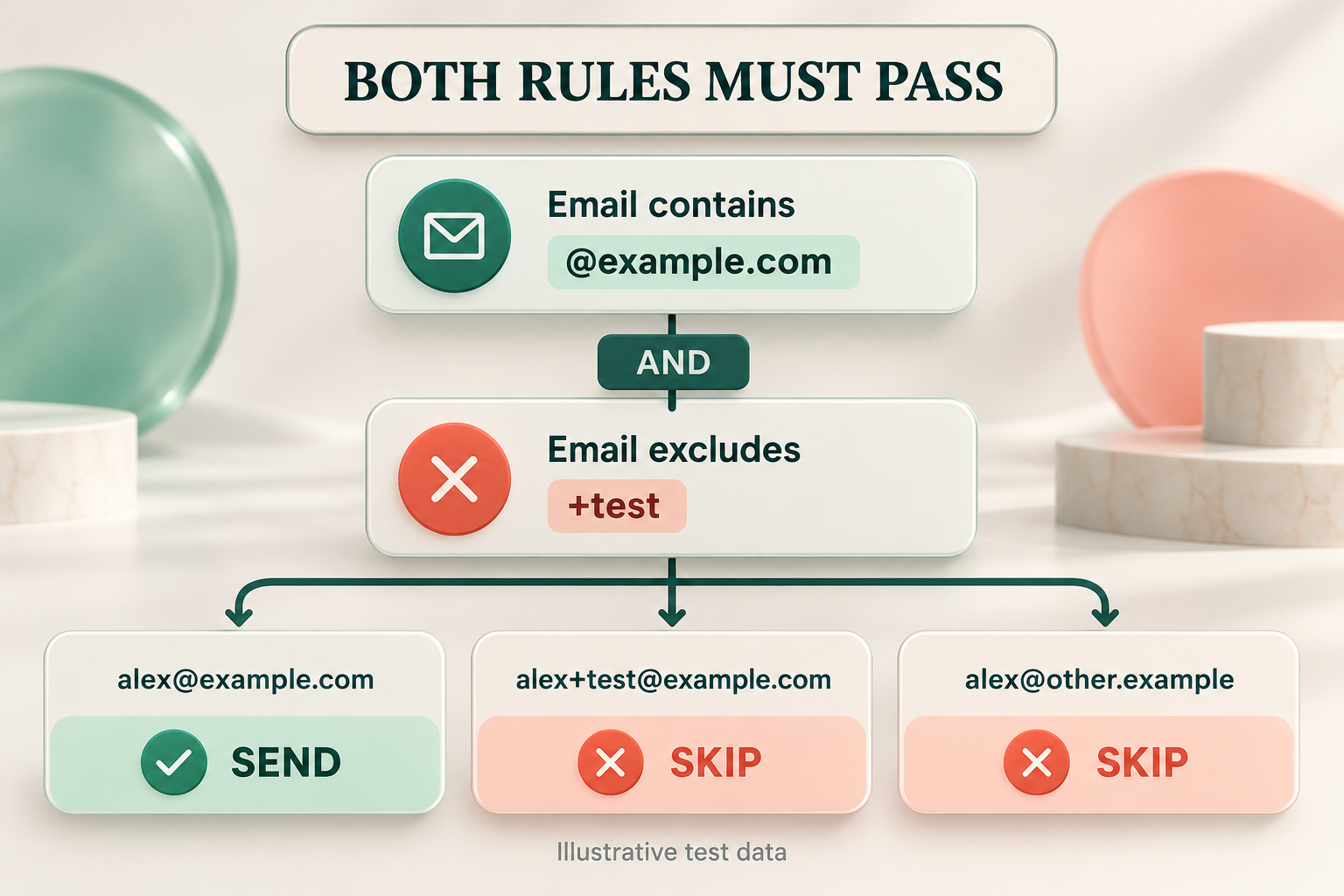
The first rule asks for @example.com somewhere in the email. The second asks for +test to be absent. Both rules must pass. A registration that passes the first row but fails the second row is skipped.
The inspected editor labels the first row IF and subsequent rows AND. Adding another row does not create an OR alternative. Keep the initial workflow small enough that you can explain why each row is there.
4. Check a match and two non-matches
Create fresh test registrations through a route that runs WordPress registration events. Use the receiver to check which new request arrives. These are expected outcomes for the two rules, not the results of a live test performed for this article:
- alex@example.com → send. It contains @example.com and excludes +test.
- alex+test@example.com → skip. The first condition passes, but the second fails.
- alex@other.example → skip. The first condition fails.
Use a fresh event after saving a rule. Changing a condition does not rewrite requests already delivered. If Zapier shows an old sample, compare its time and email address with the account you just created. Its webhook troubleshooting guide recommends sending new test data and then testing the trigger again.
In the source copy inspected, a condition that fails is checked before the sending and logging functions run. A skipped event therefore does not become a failed HTTP request in that path. Confirm the expected absence at the receiver rather than expecting every non-match to increase Failed.
When the result is different from what you expected
- Check the trigger. Creating an account and signing in later are separate events.
- Check the saved fields. Trigger, URL, status, field, comparison, and literal value all matter. Reopen the event after saving it.
- Check case and spaces. Contains and Excludes use case-sensitive string searches in the inspected copy. +Test and +test are different strings.
- Check the source of the field. A value added to the outgoing payload later is not necessarily available when conditions are evaluated. Start with the Email field in this example.
- Check other outbound events. Another enabled event for the same trigger may still send its own request. A condition applies to the event you edited.
Check the receiving workflow as well as the WordPress screen. The inspected plugin counts a send as successful when it gets a non-error response with a non-empty body; that counter does not establish that the receiving app completed the action you wanted.
Change or remove a rule deliberately
When you change the conditions, repeat at least one case that should pass and one that should be skipped. A workflow that only passed the matching case has not yet shown that its filter blocks the unwanted case.
Removing every condition broadens the event again: the inspected dispatch code sends matching-trigger events without a condition check when no conditions are saved. If you want to pause the whole event instead, use Webhook Status → Disabled.
Keep the filter separate from the content being sent. A condition decides whether the request is sent; it does not automatically remove private fields from a request that passes.
Conclusion
Start with the right trigger, add one clear condition, and check a matching and a non-matching event. Then add another row only when both checks are meant to be true together.
For this example, the intended rule is simple: send a registration only when its email contains @example.com and excludes +test. Once you have confirmed that behaviour at the receiver, adapt the field and value to your actual workflow with WP Zapier.