
Table of Contents
- What you need
- Open sequential numbers
- Set the format
- What a new order stores
- What the template prints
- Check a new order, not only the sample
- Leave old invoices alone
- Conclusion
PMPro PDF sequential invoice numbers replace the random code on a new membership order with a formatted number such as INV-0001. PDF Invoices for Paid Memberships Pro has had that option since version 2.1. The public readme still lists it under 2.2.
This how-to follows the sequential invoice numbers page and the version 2.2 source, both read on 11 November 2026. It does not replace that page. It also does not edit the logo how-to or the billing-address how-to. Turn the option on for new orders. Renumbering invoices that already exist is a separate job, and this article does not give that procedure.
What you need
- Paid Memberships Pro active. The PDF Invoices screen moves under Memberships only when that plugin is loaded.
- PDF Invoices 2.1 or newer. The 2.2 release note, dated 28 September 2026, covers fonts and does not remove numbering. The readme checked the same day as this article has stable tag 2.2, requires WordPress 6.0 or newer and PHP 7.2 or newer, and says tested up to WordPress 6.9.
- A staging site if the live store already emails order codes. A new order’s code changes. Old orders stay as they are.
- The plugin from your purchase email or from File Downloads.
The product page, checked on 11 November 2026, shows 1 site at $39 per year, with $47 printed beside that price, 5 sites at $97 per year, and unlimited sites at $147 per year. A licence key is for updates and support. The 2.0 release note is the one that moved the screen under Memberships.
Open sequential numbers
With Paid Memberships Pro active, go to Memberships → PDF Invoices. The page heading is PMPro PDF Invoices. The page opens on the Tools tab. Open Settings.
Find the section Sequential Invoice Numbers. Tick Use sequential invoice numbers instead of random order codes. Click Save Settings. The notice says Settings saved. Reopen the Settings tab. The extra fields, and a Preview line, appear after the option is saved.
The sequential numbers page still says Settings → PMPro PDF Invoices. That path is the fallback, used only when Paid Memberships Pro is not active. New membership orders need Paid Memberships Pro, so use Memberships.
The sentence under the checkbox says the original order code is preserved in PMPro. The 2.2 source does not do that for a new order. The next section says what it writes instead.
Set the format
These are the fields on that section, with the labels from the 2.2 source.
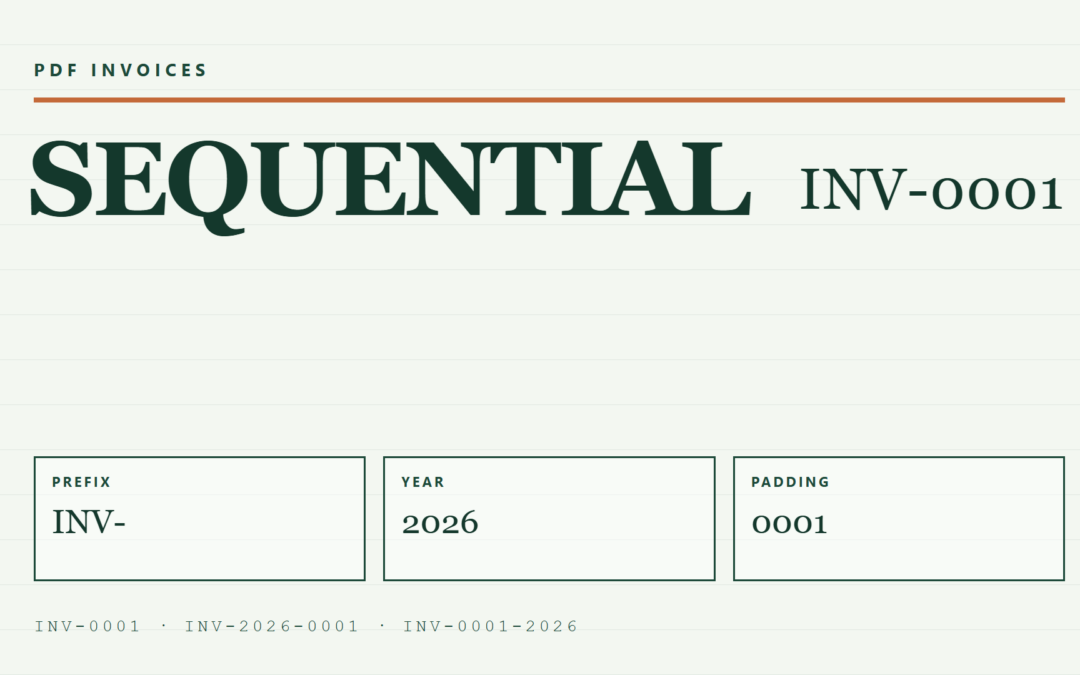
- Prefix. Text before the number. The default is
INV-. If you clear it and save, the source writesINV-again, because an empty prefix is treated as missing. - Suffix. Optional text after the number. An empty suffix stays empty. The field’s own example is
-UK, which turns INV-0001 into INV-0001-UK. - Number Padding. Total digits, from 1 to 10. The default is 4, which prints 0001.
- Include Year. Adds the calendar year. The source uses PHP’s
date('Y'), which follows the server’s PHP timezone. It does not use the timezone under Settings → General. PHP’s date() is the function in this file. wp_date() is the WordPress function that follows the site timezone, and this setting does not call it. If the server date is still yesterday, the year in the number can differ from the date you see in WordPress. - Reset Yearly. Hidden until Include Year is ticked. The label is Reset numbering to 1 at the start of each year. The first order saved in that PHP year becomes 1, and later orders in the same year count up from it. The screen says this is required for EU VAT compliance. That sentence is the plugin’s own description. This article does not turn it into tax advice.
- Year Placement. After prefix, which looks like INV-2026-0001, or before suffix, which looks like INV-0001-2026.
- Next Invoice Number. The number the next saved order will use. Leave it unless you mean to start a sequence.
- Replace Order Code. The label is Use sequential number for {{invoice_code}} variable. The 2.2 source saves this choice and does not read it when it builds the PDF. You do not need the checkbox for a new invoice to show the sequential number. The next section says why.
INV-0001
INV-2026-0001
INV-0001-2026
Those three lines are examples of the format, not values to paste into the template. The Preview line on Settings, after a successful save, shows the next formatted number from the values currently stored.
Next Invoice Number is not a counter that ticks by itself. The source derives it from the next order ID minus an offset. If you save a different number, the offset changes so the next saved order uses the number you typed. A higher number leaves a gap. A lower number can match a number already printed. If you save the number that is already in the field, the offset is left alone.
What a new order stores
When sequential numbers are on, a real order insert runs pmpro_added_order and writes the formatted number into that order’s code. The code column is replaced. The order does not keep a second random code beside it.
Paid Memberships Pro’s orders screen describes the code as the invoice number the member sees in the confirmation email and on the invoices page. After this setting is on, a new order’s code is the sequential value, so that is what the member sees. The membership order page opens one order when the URL contains ?invoice= and that code. Links that used the old random code still point at the old order. They do not point at the new number.
A checkout preview that only builds an order in memory does not get a number. The assignment runs when the order is inserted.
The source checked for this article is the public 2.2 tree at commit da99160, the same tree used for the 22 October logo article, read again on 11 November 2026. It was not compared byte for byte with a fresh paid zip, and it was not installed on a site for this package. Confirm the result on staging with one new test order before you rely on it.
What the template prints
The built-in invoice template prints the stored code with {{invoice_code}}. For a new order saved while sequential numbers are on, that stored code is already INV-0001 or whatever format you saved. You do not need a second placeholder for that result.
{{invoice_code}}The public sequential-numbers page says to add {{sequential_invoice_number}} if it is not already there. In this 2.2 source, that placeholder is filled by a filter which receives the member first and the order second. The callback reads its second argument as the order, so it reads the member. A member record has no order code, and the placeholder can print blank. Keep {{invoice_code}} on the invoice number line. If you also add {{sequential_invoice_number}}, open a PDF from a new test order and see whether it printed before you depend on it.
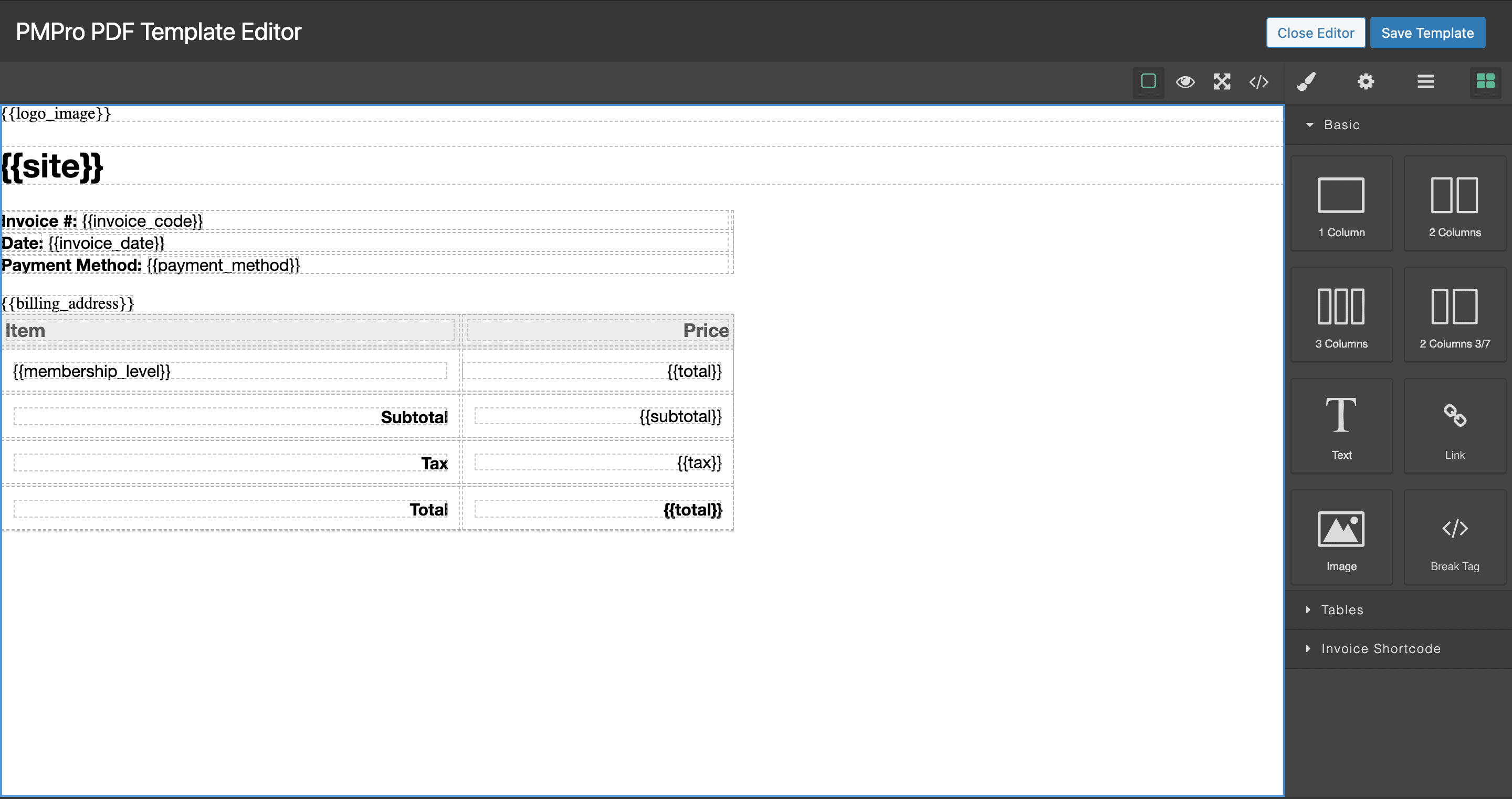
This is an older Media Library capture of the template editor, not the 2.2 Settings screen. The invoice line says Invoice #: {{invoice_code}}. The buttons in the capture are Close Editor and Save Template. The current Tools tab uses Edit Template or Create Template, Select Built-in Template, and Download Sample PDF. Do not select another built-in template just to change the number. Selecting a built-in design replaces the current custom template. Numbering is a Settings option.
The template guide covers creating and editing that file. Logo placement stays in the logo how-to. Billing address tokens stay in the billing-address how-to.
Check a new order, not only the sample
Download Sample PDF is on the Tools tab. It builds Paid Memberships Pro’s test order in memory and does not insert a row, so the new-order step never runs. The sample can still show a test code. It is not the Preview of your next sequential number.
Use three checks, in this order:
- On Settings, after you save with the feature on, read the Preview line.
- On staging, complete one new checkout.
- Open Memberships → Orders, read that order’s code, and open the PDF for that order.
The code and the PDF should both show the formatted number. If the Preview looks right and the new order still has a random code, the plugin on that site is older than 2.1, or the checkbox was not saved. The public pages do not print the installed version for you. Read it on Plugins, on your own site.
Leave old invoices alone
Saving the setting does not change orders that already exist, and it does not rebuild PDFs already stored.
On the Tools tab, Generate Missing Invoices skips orders that already have a PDF. Regenerate All Invoices overwrites every stored PDF. The screen says to leave the window open while that runs. Regenerating reprints the code those orders already have. It does not assign sequential numbers to old orders.
The 2.2 source includes a migration routine, and the Settings section checked for this article has no button that runs it. Do not look for a hidden control on the live site. If old invoices must be renumbered, do that on a copy of the site, with a backup of the orders table, and ask support before you change historical codes.
Conclusion
PMPro PDF sequential invoice numbers are one checkbox on Memberships → PDF Invoices → Settings. Save a prefix, a width, and a year only if you want them, then prove the result with one new staging order. The number the member sees is the order code, because that is where version 2.2 writes it.
The field list stays on the sequential invoice numbers page. The install and the template editor stay in the getting started guide.