
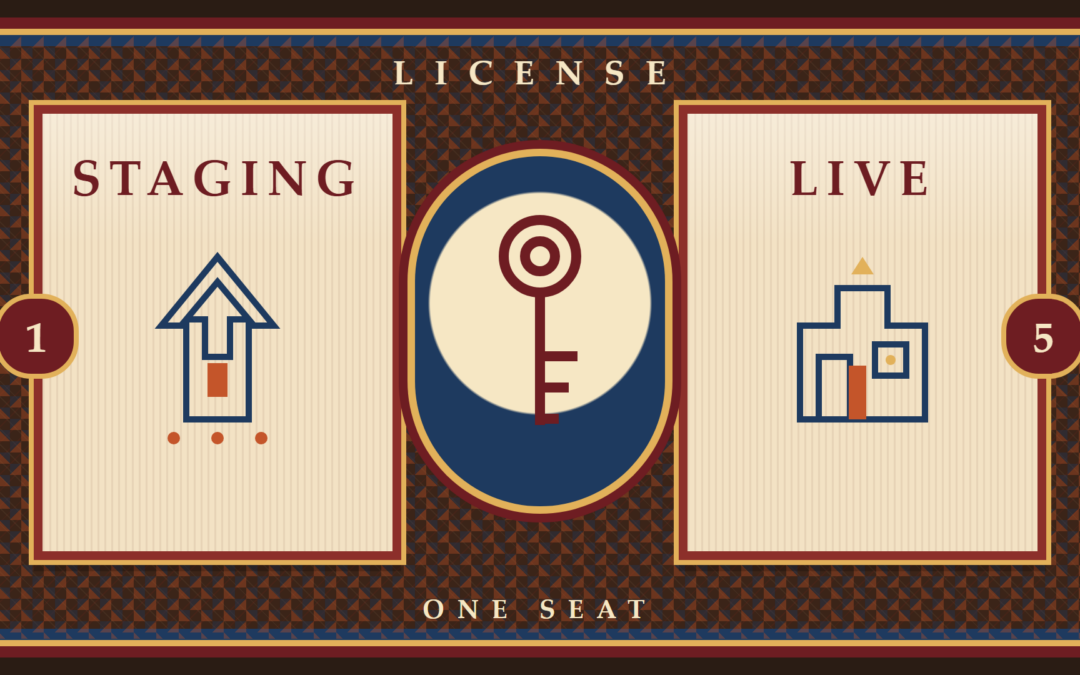
This Yoohoo license staging guide moves one key onto the live site. The seat follows the URL that activates the key. So deactivate staging before you paste that key on the live site.
Member downloads are a separate job. Read them in How to Let Members Download Their PMPro PDF Invoices. This article instead covers only the licence seat.
We checked these steps on 26 November 2026. The check used the public licensing guide. It also used the PDF Invoices license page. This check still did not click deactivate on a live site. So confirm the License tab on your own site after you save.
What you need
You need the licence key from your Yoohoo account. Open License keys, then copy the key for this product. Also keep the purchase email, because support may ask for it. Do not paste the key into a public forum.
Afterwards, install the plugin from File Downloads if you still need it. WordPress explains that upload in the Plugins screen guide.
How the seats work
A licensed Yoohoo product sells three plans. The public guide names 1 Site, 5 Site, and Unlimited.
| Plan | Activations |
|---|---|
| 1 Site License | 1 WordPress site |
| 5 Site License | 5 WordPress sites |
| Unlimited Site License | No site cap |
Each activation uses one seat on that licence. The plugin still runs when the key is missing. The key is for automatic updates and priority support. PDF Invoices still builds invoices without a key. The notice Register your copy of PMPro PDF Invoices is about updates. It is not a sign that PDF output has stopped.
Two meanings of active
The account page and the WordPress tab do not share one status. License keys on the account means the key exists. It also means the subscription term has not ended. The License tab means this site activated that key.
The notice Register your copy means this site has no active key yet. That notice can show while the account still looks fine. So read both places before you buy a second key.
Move the key
Start on staging, because that URL may hold the only seat. The licensing guide says to open the plugin License tab. This walk-through uses PDF Invoices, because the public pages name that menu.
When Paid Memberships Pro is active, open Memberships, then PDF Invoices. Then open the License tab. The troubleshooting page instead says Settings, then PMPro PDF Invoices, then License. Use Settings only when Paid Memberships Pro is not active. Release 2.2 used that split on 24 November 2026. If your menu title differs, follow the License tab you see.
- On staging, remove or deactivate the key.
- On the live site, paste the same key and save.
- Reload the License tab and read the status.
The guide uses both remove and deactivate, so pick the control on that tab. You want status Active, and a future expiry date or lifetime.
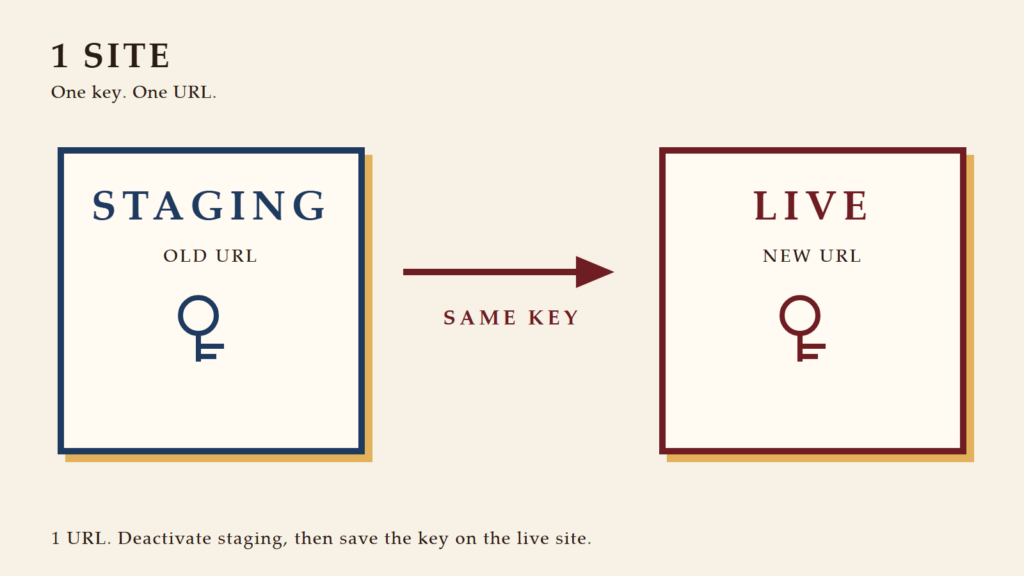
The drawing above is not a plugin screen. No public license screenshot was on the documentation pages on 26 November 2026. So read the status on your own License tab.
The seven day cache
Saving the PDF Invoices key clears a local cache. That cache lasts 7 days. So if the tab still says expired after a renewal, save the key again. Do not wait a week for the cache to age out.
Two addresses at once
If staging and live use two URLs, two active keys use two seats. A 1 Site licence is not enough for both. Use 5 Site or Unlimited when both URLs must stay active. Or keep the key active only on the live site.
A 5 Site licence also covers a few extra environments. Specifically, staging plus live is two sites. So Unlimited is optional for that pair. Buy Unlimited when more than five URLs stay active together.
Paths such as /en/, /de/, and /fr/ count as one site. They sit on the same WordPress install. Separate domains or subdomains count separately. So a new domain counts as another site. WordPress documents a site URL change in Changing the Site URL.
If a clone still has the key, that clone holds a seat. When you are unsure, send support both URLs and the purchase email. Still do not send the key in a public forum.
WordPress multisite
Each network site that activates the licence uses one seat. Many sites usually need a 5 Site or Unlimited licence. On some networks, only a Super Admin can open the PDF Invoices licence screen. WordPress explains networks in the multisite handbook.
If a Super Admin sees the not-allowed message, open a support ticket. The documented sentence is Sorry, you are not allowed to access this page. That message is a product issue, not a missing purchase. So activate from a Super Admin account.
When the live site still looks expired
The old URL can still hold the only 1 Site seat. Then the live site looks expired or unregistered. So deactivate the old URL first. Then activate the live URL.
Also confirm the key belongs to this product. An old zip can keep the register notice after renewal. So install the current zip from File Downloads, then save again. If PDFs fail, use the PDF generation errors guide instead. The register notice is a different problem.
Conclusion
Move a Yoohoo licence by freeing the staging seat first. Then paste the same key on the live License tab. A 1 Site licence holds one URL. If both URLs must stay active, use 5 Site or Unlimited. The plugin can still run before the check succeeds. Updates and support wait until the License tab says Active.