
Table of Contents
- What you need
- Create a webhook for the intended Slack channel
- Activate the add-on and open its settings
- Save a small initial setup
- Check a fresh login and a non-matching role
- Add time restrictions only after the basic test works
- When a message is missing
- Conclusion
WordPress login notifications can send a message to Slack when someone signs in to your site. If you manage a small team, that gives you a useful site event in the channel you already check.
This guide uses Yoohoo’s When Last Login Slack Notifications add-on. You will connect one channel, choose a WordPress role and check a fresh login. Start with that small setup before adding registration messages, IP addresses or time restrictions.
What you need
- The free When Last Login plugin, installed and active.
- The separate When Last Login Slack Notifications add-on from your Yoohoo account.
- A Slack workspace where you can add or obtain an approved incoming webhook, and a channel intended for site notifications.
- A test account with the WordPress role you want to notify about. Use staging if you need to change roles or create extra accounts.
These messages describe WordPress logins. They do not show when somebody was last active in Slack, how long they worked, or what they edited after signing in. Our Slack active and away explainer covers that separate question.
Tell the people involved what the site sends, and choose a channel whose membership fits that purpose. This walkthrough leaves IP addresses and new-user messages off so the first test stays focused on a login.
1. Create a webhook for the intended Slack channel
An incoming webhook is a secret address WordPress can send a message to. Follow Slack’s current incoming-webhook setup guide; older Yoohoo screenshots show an earlier Slack setup screen.
- Create a Slack app for your workspace, or use an existing approved app.
- Open its Incoming Webhooks settings and enable incoming webhooks.
- Choose Add New Webhook to Workspace, select the intended channel and authorise it.
- Copy the resulting webhook URL. For a private channel, you need to be a member before adding it.
Keep the URL out of screenshots, public posts and shared code. Anyone who gets the secret may be able to send messages through it. If your workspace restricts apps, ask its administrator for an approved route.
The destination is selected in Slack during webhook creation. If you later need another channel, configure a webhook for that destination instead of assuming that changing a channel name in WordPress will reroute an existing URL.
2. Activate the add-on and open its settings
- In WordPress, confirm that When Last Login is active.
- Open Plugins → Add New → Upload Plugin, choose the Slack Notifications ZIP from your Yoohoo download and install it.
- Activate the Slack Notifications add-on.
- Open When Last Login → Settings → Slack Notifications.
The free plugin records the login; the add-on uses that recorded-login event to prepare the Slack message. If the base plugin is not recording your sign-ins, resolve that first with the WordPress last-login guide.
Check the installed add-on version when comparing it with documentation. The published product metadata and source tags are not perfectly aligned, so this guide uses the shared settings labels and identifies version-sensitive behaviour below. It does not assume that a development-branch change is installed on your site.
3. Save a small initial setup
- Paste your own URL into Slack Webhook URL.
- For Only notify of a specific user role, choose Administrator if that is the role you want to check. Use the role that matches your actual purpose.
- Leave the new-user registration notification unchecked for now.
- Leave Include user’s IP address in Slack notifications unchecked.
- For Only notify during a specific time frame, start with Every Day.
- Click Save Settings, then reopen the tab to check that your choices remain saved.
A role filter lets you avoid a message for every customer or subscriber login. Choose All User Roles only if you actually need that wider stream of events.
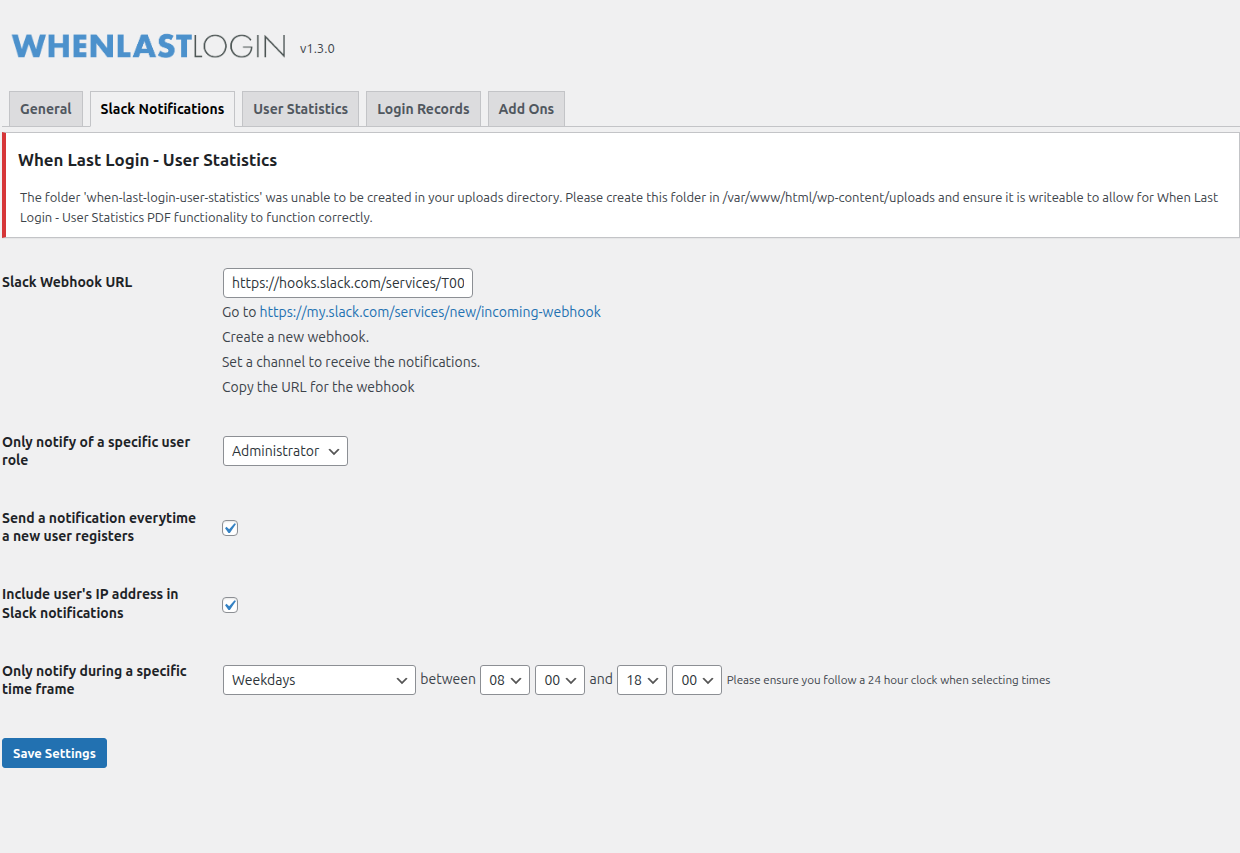
Do not copy every tick or time shown in the demo. The screenshot enables extra options and a weekday window; our initial setup leaves those extras off. Registration notifications are a separate event, so do not assume that a login-role filter also limits registration messages.
4. Check a fresh login and a non-matching role
Saving the settings does not replay earlier logins. Use a fresh sign-in after the configuration is saved. Refreshing a page while you are already signed in is not the same test.
- Use your test account to sign out and sign back in through the normal WordPress login page.
- Open the Slack channel authorised for the webhook and look for a new message about that account and site.
- Compare the account, site and time with the sign-in you just performed. Check a new message rather than an old example already in the channel.
- If you selected Administrator, repeat with an existing non-administrator test account. Its login should not produce a login notification through that role-filtered setup.
These are checks for you to carry out on your installation. The screenshots are examples; they are not evidence that your webhook has been tested or that a live test was run for this article.
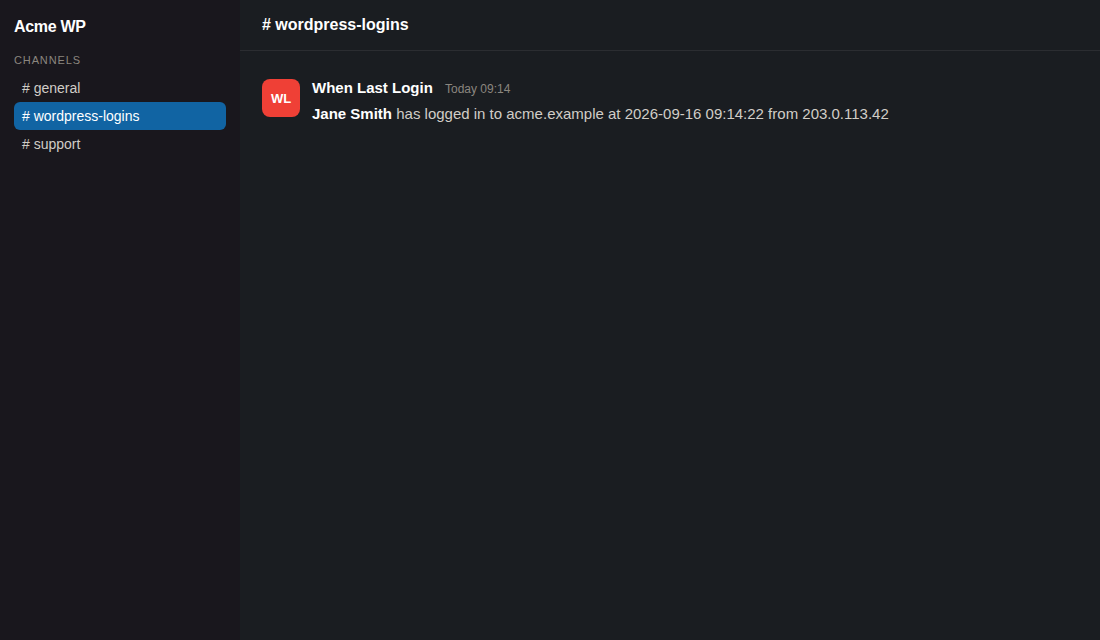
The inspected notification text includes the user’s display name, site and timestamp. The optional IP setting can add an address. Review the actual message before expanding the audience or enabling extra fields.
5. Add time restrictions only after the basic test works
The settings offer Weekdays, Weekends, and Weekdays and Weekends, with a start and end time in 24-hour format. Treat that as a separate configuration change after the role and delivery checks succeed.
Time handling differs between the released and development source versions checked for this guide. Do not assume a development fix is available in your installed ZIP, or that a window crossing midnight behaves as two separate ranges.
If you need a restricted window, note the installed versions and timezone settings, then check a login that should be included and one that should be excluded. Compare the message time with the real sign-in time too. Ask Yoohoo support to confirm behaviour on that version if either result is unexpected.
If you do not need a restricted window, keep Every Day. There is no benefit in adding a time condition that makes the notification harder to explain or verify.
When a message is missing
- No new WordPress login record: test the same account through the standard login page. A custom login flow can be the gap between the sign-in and the recorded event.
- Login recorded but no message: check the saved webhook, selected role and time setting. Confirm that you are watching the channel linked to that URL.
- It works for one role only: compare both accounts with the selected role before changing anything else.
- It stopped after a workspace change: check whether the Slack app, webhook and destination channel are still usable.
- It sends registrations you did not expect: review the separate new-user notification checkbox.
A saved settings page is not proof of delivery. Ask your host or support team to check the outgoing request and Slack’s response if the basic checks do not explain the missing message. Share the plugin version and the time of your test; keep the full webhook secret out of an ordinary screenshot or public support thread.
The add-on is a notification route for recorded WordPress logins. It is not a failed-password alert, a complete security audit, or a guarantee that every message will arrive. Keep the normal login records available for investigating the site event itself.
Conclusion
Start with one channel, one role and Every Day. Save the webhook, make a fresh matching login, and check a non-matching role. That gives you a clear baseline before adding other conditions.
Once those checks pass, keep the channel membership and webhook access appropriate for the information being sent. When Last Login Slack Notifications then gives your team a focused WordPress login message without turning Slack presence into an attendance record.