
Table of Contents
- Does WordPress store the last login date?
- How the code approach works
- Test the snippet
- What “Not recorded yet” means
- Privacy and retention
- When to use the plugin instead
- Common mistakes
- Conclusion
Does WordPress store the last login date?
WordPress does not provide a standard historical “last login” field for every user. It authenticates the user and manages sessions, but a site that wants a persistent last-login timestamp must start recording one.
That means existing users have no reliable historical date to recover. After you add tracking, each user's value appears the next time that person successfully logs in.
You can implement a small code snippet or use the free When Last Login plugin for a sortable admin view and additional management tools.
How the code approach works
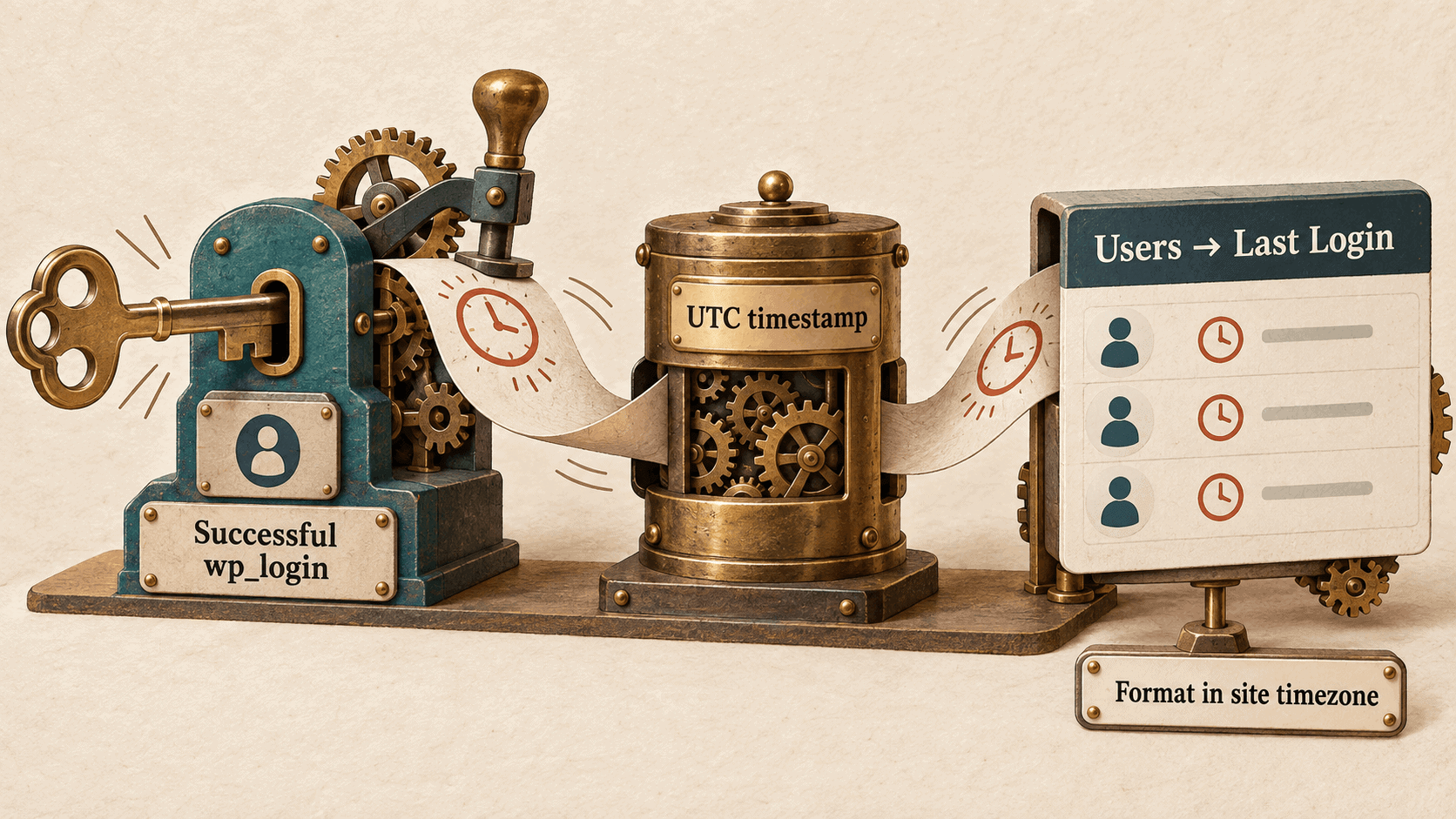
WordPress fires the documented wp_login action after a user has successfully logged in through wp_signon(). It passes the login name and the authenticated WP_User object.
The snippet below:
- stores the current WordPress timestamp in user meta;
- adds a Last Login column to the Users screen;
- formats the value using the site's date and time settings;
- shows “Not recorded yet” until the user's next login.
Add the complete snippet through Code Snippets or a small site-specific plugin.
/**
 * Record the timestamp after a successful WordPress login.
 *
 * @param string  $user_login Login name.
 * @param WP_User $user       Authenticated user.
 */
function yoohoo_record_user_last_login( $user_login, $user ) {
	if ( ! $user instanceof WP_User ) {
		return;
	}

	update_user_meta( $user->ID, '_yoohoo_last_login', current_time( 'timestamp', true ) );
}
add_action( 'wp_login', 'yoohoo_record_user_last_login', 10, 2 );

/**
 * Add a Last Login column to the WordPress Users screen.
 *
 * @param array $columns Existing user columns.
 * @return array
 */
function yoohoo_add_last_login_column( $columns ) {
	$columns['yoohoo_last_login'] = 'Last Login';

	return $columns;
}
add_filter( 'manage_users_columns', 'yoohoo_add_last_login_column' );

/**
 * Render the recorded last-login timestamp.
 *
 * @param string $output      Existing column output.
 * @param string $column_name Column key.
 * @param int    $user_id     WordPress user ID.
 * @return string
 */
function yoohoo_render_last_login_column( $output, $column_name, $user_id ) {
	if ( 'yoohoo_last_login' !== $column_name ) {
		return $output;
	}

	$timestamp = absint( get_user_meta( $user_id, '_yoohoo_last_login', true ) );

	if ( ! $timestamp ) {
		return 'Not recorded yet';
	}

	return esc_html(
		wp_date(
			get_option( 'date_format' ) . ' ' . get_option( 'time_format' ),
			$timestamp
		)
	);
}
add_filter( 'manage_users_custom_column', 'yoohoo_render_last_login_column', 10, 3 );
The snippet uses current_time( 'timestamp', true ) to store a true UTC Unix timestamp in user meta. wp_date() then formats that timestamp using the site's configured timezone. The leading underscore in _yoohoo_last_login keeps the key out of WordPress's generic Custom Fields interface; it does not make the value secret.
Test the snippet
- Add and activate the snippet on staging.
- Log out completely or use a private browser window.
- Log in with a test user.
- Open Users -> All Users as an administrator.
- Confirm the Last Login column shows the expected local date and time.
- Log in again and confirm the value updates.
- Test the site's normal login path, WooCommerce My Account, SSO, and two-factor flow if used.
Most login systems that complete through wp_signon() trigger wp_login, but a custom authentication flow may not. Verify the paths that matter to your site. If you also need to control the destination after authentication, keep that separate and use the login_redirect filter.
What “Not recorded yet” means
It does not prove that the person has never logged in. It means the site has not recorded a qualifying login since this tracking code was activated.
Avoid inventing a historical date from user_registered, last activity, session tokens, or the most recent content edit. Those values describe different events.
Privacy and retention
A login timestamp is user activity data. Record only what you need and document the purpose.
Consider:
- who can view the date;
- how long records are retained;
- whether the value is included in user-data export or erasure workflows;
- whether employees, customers, or members must be informed;
- whether login IP addresses are genuinely necessary.
The sample stores only a timestamp. It does not record an IP address, browser, password, or session token.
When to use the plugin instead
Choose When Last Login when you want a maintained interface rather than owning custom code. The current plugin page lists a sortable Last Seen column, login-history records, an optional last-IP setting, and integrations with Paid Memberships Pro and supported two-factor authentication.
The plugin's documentation also explains that users who have not logged in since activation initially show “Never.” This is the same historical limitation as the code approach: tracking starts when tracking is installed.
Yoohoo also offers add-ons for selected operational workflows, including Slack notifications for WordPress logins. Use those notifications transparently and send them only to an appropriate private channel. If a successful login should trigger a wider CRM or workflow automation, Zapier and Webhooks Integration for WordPress can send a dedicated login event without putting remote API work inside this display snippet.
Common mistakes
Saving the current display time as text
Store a numeric timestamp and format it when displaying. That avoids locking the stored value to one date format.
Recording failed attempts as successful logins
Use wp_login, which fires after successful authentication. Failed-login monitoring is a different security workflow.
Assuming the value exists for old users
Tracking cannot reconstruct past logins that were never stored.
Editing a plugin to add the feature
Keep the snippet in Code Snippets or a site-specific plugin so theme and plugin updates do not overwrite it.
Conclusion
WordPress does not store a universal last-login date by default. Start recording successful logins with the wp_login action, display the timestamp carefully, and be honest that older activity cannot be reconstructed.
Use the small snippet for a narrow requirement or When Last Login when you need a maintained admin experience and additional tools.