
Table of Contents
- Introduction
- What Is WooCommerce HPOS?
- Why HPOS Matters in 2026
- How to Audit Your Store for HPOS Readiness
- The Migration Process: A Safe Step-by-Step Guide
- Fixing Common HPOS Compatibility Issues
- Optimizing Performance After Migration
- Conclusion
Introduction
If you manage a WooCommerce store, there is a quiet revolution happening beneath your admin dashboard. WooCommerce HPOS (High-Performance Order Storage) has replaced the old post-based order system as the default architecture, and the legacy storage model is being phased out entirely.
For developers and store owners alike, this is not just another update to ignore. Stores still running on legacy order storage are sitting on a performance time bomb. Order searches slow to a crawl, the database balloons with orphaned metadata, and checkout times creep upward as transaction volume grows.
In this guide, we will cover what WooCommerce HPOS actually changes, how to audit your store for compatibility, and how to migrate safely without breaking your custom plugins or integrations.
What Is WooCommerce HPOS?
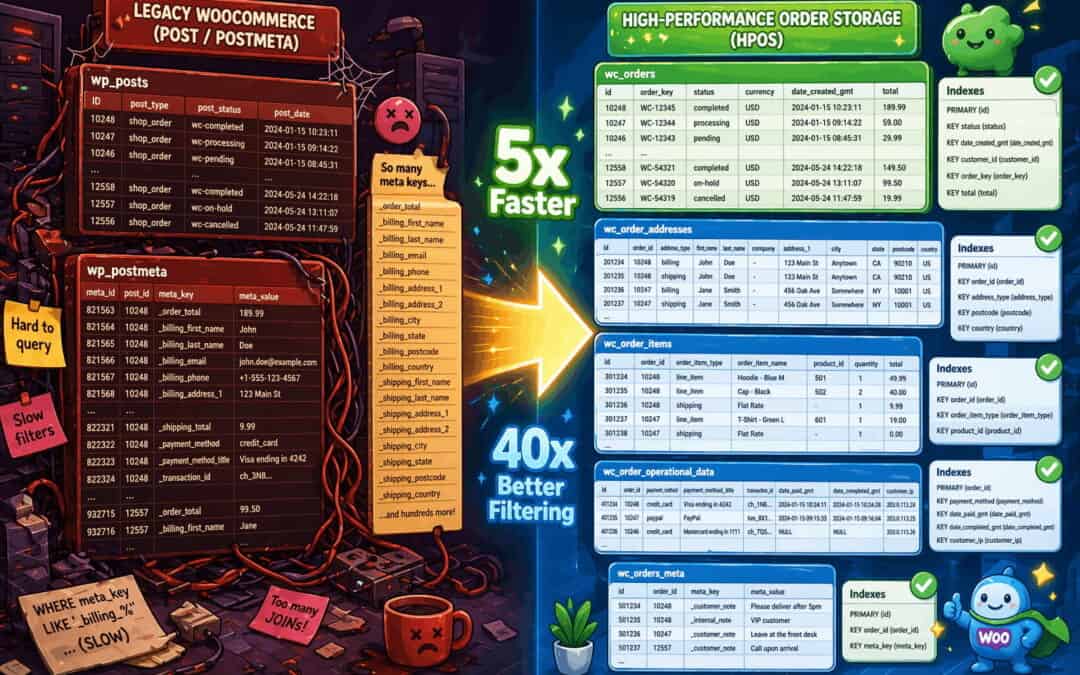
High-Performance Order Storage moves order data out of the generic wp_posts and wp_postmeta tables and into dedicated, purpose-built tables designed specifically for e-commerce operations.
Under the legacy system, every order was stored as a custom post type. Billing addresses, totals, statuses, and payment methods were all crammed into key-value meta pairs. It was flexible, but it was never efficient at scale.
WooCommerce HPOS introduces four structured tables: wp_wc_orders, wp_wc_order_addresses, wp_wc_order_operational_data, and wp_wc_orders_meta. Each field gets a properly typed, indexed column. A billing email is no longer a LONGTEXT meta row. It is a VARCHAR with an index in the addresses table. Order totals are DECIMAL columns, not strings.
This matters because WooCommerce stores with tens of thousands of orders often see their admin panels grind to a halt. Reports time out. Order searches take seconds. HPOS fixes this at the database layer.
Why HPOS Matters in 2026
WooCommerce 8.2 made HPOS the default for new installations. More importantly, WooCommerce 10.7 (released April 14, 2026) disabled sync-on-read by default. This means plugins that still write order data directly to wp_postmeta and expect those changes to appear in HPOS will now silently fail or produce inconsistent results.
The performance gains are substantial. WooCommerce’s own benchmarks on a 400,000-order test store show order creation becoming roughly five times faster, customer ID filtering improving by up to forty times, and metadata searches accelerating by a factor of ten.
For high-traffic stores, this translates directly into faster checkouts, snappier admin workflows, and lower hosting costs. For developers, it means writing cleaner, more predictable queries using the WooCommerce CRUD API instead of wrestling with postmeta JOINs.
Pro Tip: If your store is still on legacy storage, the single largest performance improvement available today is migrating to WooCommerce HPOS. No caching plugin or CDN can match the impact of fixing the underlying data architecture.
How to Audit Your Store for HPOS Readiness
Before enabling WooCommerce HPOS, you need to know what you are working with. Skipping this step is how migrations fail.
Step 1: Check Your Current Storage Mode
Navigate to WooCommerce → Settings → Advanced → Features. Look at the “Order data storage” setting. If it says “WordPress posts storage,” you are on legacy mode and need to migrate. If it already says “High-Performance Order Storage,” your store is using HPOS and you should verify that all plugins are fully compatible.
Step 2: Run the Compatibility Report
WooCommerce includes a built-in compatibility checker. Go to WooCommerce → Status → Features and review the HPOS compatibility report for all installed plugins. Any plugin marked as “Uncertain” or “Incompatible” must be updated, replaced, or tested manually on a staging site before you proceed.
Step 3: Audit Your Custom Code
If you or a developer have written custom snippets that interact with orders, search your codebase for these red flags:
get_posts()orWP_Querywithpost_type = 'shop_order'- Direct
get_post_meta()calls on order IDs - Raw SQL queries against
wp_postsorwp_postmetafor order data wp_update_post()orupdate_post_meta()used to modify orders
Any code using these patterns will break under WooCommerce HPOS. The fix is to route all reads and writes through the WooCommerce CRUD API using wc_get_orders(), WC_Order objects, and the wc_get_order() function.
The Migration Process: A Safe Step-by-Step Guide
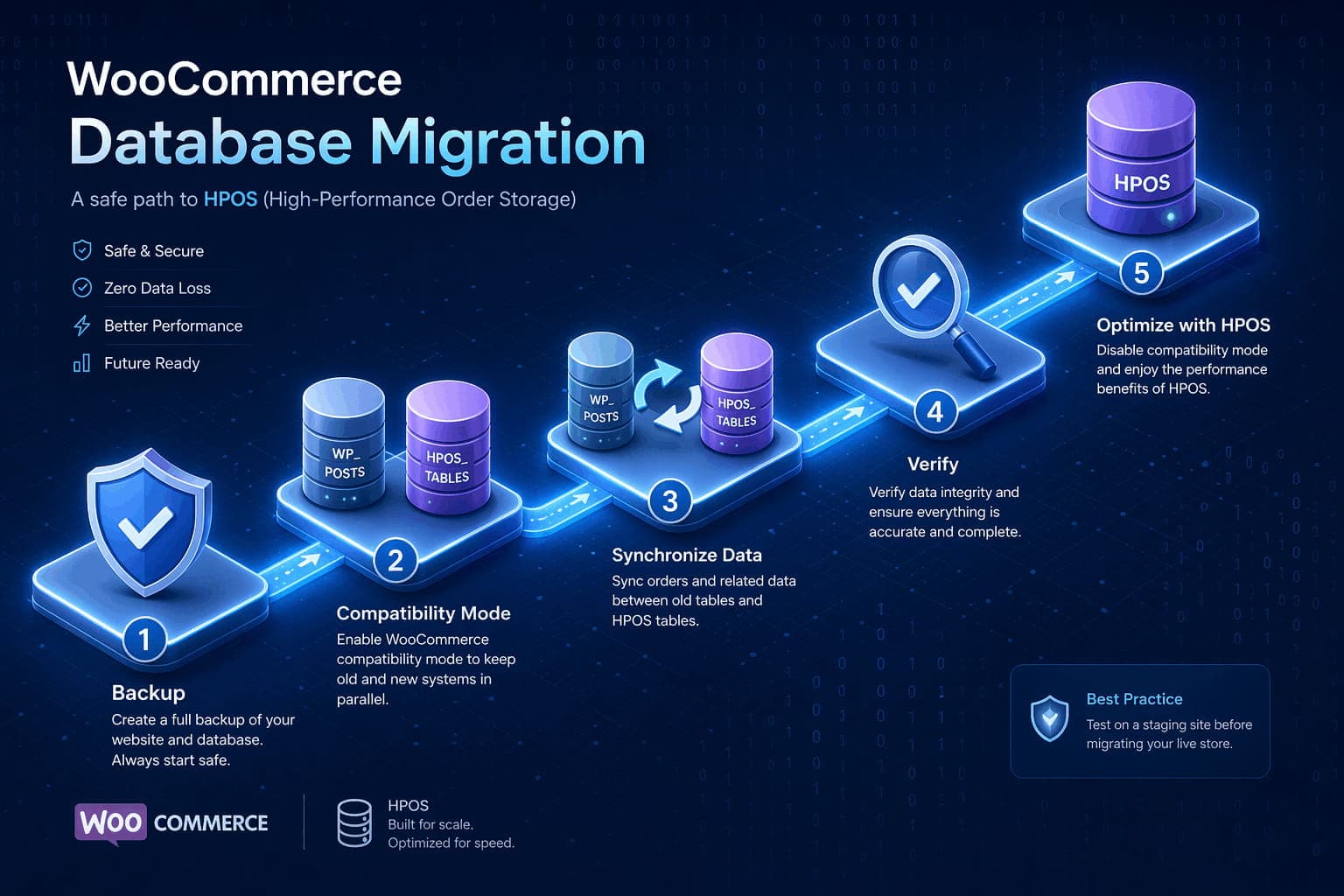
Never migrate HPOS directly on a live store. Always use a staging environment first.
Step 1: Back Up Everything
Create a full database backup. HPOS migration touches order data, and while the process is designed to be safe, having a rollback path is non-negotiable.
Step 2: Enable Compatibility Mode
In WooCommerce → Settings → Advanced → Features, enable “High-Performance Order Storage” but keep “Enable compatibility mode” checked. This runs both storage systems in parallel, writing to legacy tables and HPOS tables simultaneously.
Step 3: Sync Existing Orders
For stores with large order histories, use the WP-CLI command instead of the web interface to avoid timeouts:
wp wc hpos sync
This copies existing orders from wp_posts into the new HPOS tables. On large stores, plan for this to take time.
Step 4: Verify Data Integrity
Once sync completes, run a verification check:
wp wc hpos verify_data
This compares orders across both storage systems and flags any discrepancies.
Step 5: Make HPOS Authoritative
Only after testing thoroughly on staging should you switch the “Order data storage” setting to “Use the WooCommerce orders tables.” Monitor your store closely for 24 to 48 hours.
Step 6: Disable Compatibility Mode
Once you are confident everything works correctly, uncheck “Enable compatibility mode.” Your store is now running fully on WooCommerce HPOS.
Fixing Common HPOS Compatibility Issues
Even after migration, issues can surface. Here are the most common problems and how to solve them.
Plugin Incompatibility Warnings
If a plugin triggers an incompatibility notice despite declaring support, it may be using metadata-based queries that the compatibility scanner detects. Contact the plugin developer and reference the WooCommerce HPOS extension recipe book for guidance.
Custom Order Types Break
Stores using custom order types, such as subscriptions or bookings, must explicitly opt them into HPOS. Add your custom type to the woocommerce_data_stores filter and check OrderUtil::custom_orders_table_usage_is_enabled() in your code before touching the datastore. Otherwise, your custom order type will continue to be stored in wp_posts even after HPOS is enabled for standard shop_order types.
Missing Order Data in External Integrations
If an external CRM, accounting tool, or Zapier workflow stops seeing order updates, it is likely reading from wp_posts instead of the HPOS tables. Update the integration to use WooCommerce REST API endpoints or the CRUD layer rather than direct database access.
Pro Tip: If you use WP Zapier to connect WooCommerce to external services, verify that your outbound events are configured to trigger on WooCommerce-native hooks rather than post transition actions. This ensures compatibility with WooCommerce HPOS and future-proofs your automations.
Optimizing Performance After Migration
Migrating to WooCommerce HPOS is a major win, but it is not the finish line.
Clean Up Legacy Tables
After running on HPOS confidently for several weeks, remove orphaned order data from the legacy tables to reclaim database space. You must specify which orders to clean up, or use all to target every migrated order:
wp wc hpos cleanup all
The cleanup command verifies orders before removal and stops if the post version appears more recent than the HPOS version. You can inspect discrepancies with wp wc hpos diff and reconcile them with wp wc hpos backfill before retrying. If you are certain the data is safe to remove, add the --force flag to skip verification checks.
Tame Action Scheduler Bloat
WooCommerce’s Action Scheduler tables can grow into millions of rows, especially on busy stores. Enable automated cleanup or use WP-CLI to purge completed and failed actions older than your retention threshold.
Monitor Your Autoloaded Options
A bloated wp_options table with excessive autoloaded data adds latency to every request. Audit autoloaded rows quarterly and keep the total size under 500KB for optimal performance.
Add Missing Indexes
If you run custom queries against product metadata, consider adding composite indexes on high-traffic meta keys. For example:
ALTER TABLE wp_postmeta ADD INDEX meta_key_value (meta_key(191), meta_value(191));
This can reduce query times from seconds to milliseconds on large catalogs.
Conclusion
WooCommerce HPOS is not an optional upgrade. It is the new foundation for order management in WooCommerce, and the legacy post-based system is on its way out.
For developers, the shift means embracing the WooCommerce CRUD API, auditing custom code for direct database access, and testing thoroughly on staging before flipping the switch. For store owners, it means faster checkouts, quicker admin searches, and a database architecture built to scale.
The stores that migrate early and correctly will have a measurable competitive advantage. The ones that wait risk broken integrations, failed plugin updates, and performance degradation at the worst possible moment.
Key Takeaways
- Audit first: Check plugin compatibility and custom code before migrating.
- Use staging: Never enable HPOS on a live store without testing.
- Leverage WP-CLI: Sync, verify, and clean up via command line for large stores.
- Update integrations: Ensure external tools use WooCommerce APIs, not direct database access.
Ready to future-proof your WooCommerce store? Start your HPOS audit this week. And if you are looking to automate post-migration workflows, explore how WP Zapier can keep your orders flowing seamlessly to your CRM, accounting tools, and beyond.
Related Resources
Learn more about WooCommerce HPOS and performance optimization:
- WooCommerce HPOS Developer Documentation
- HPOS Extension Recipe Book
- WooCommerce Performance Best Practices
- HPOS CLI Tools Reference
- WP Zapier Plugin
- WooCommerce Server Optimization Guide
Have you migrated your store to WooCommerce HPOS yet? Share your experience or questions in the comments below!