
Table of Contents
- What you need
- Install the plugin and save the licence
- Add the table to a page
- Check what shoppers see
- Add category and stock filters
- Fix an empty table or a dead add to cart button
- Conclusion
A WooCommerce product table puts names, prices, stock, and add to cart on one page, so a shopper can scan the catalog instead of opening every product. Product Table for WooCommerce does that with a shortcode or a Product Table block.
This how-to adds one table to an ordinary page. The steps follow the getting started guide and the shortcode reference, both read on 29 October 2026. It does not replace the shop grid. Shop, category, and search archives are a separate setting, named at the end.
What you need
- WooCommerce installed and active. The getting started guide says the plugin needs WordPress 6.0 or newer, WooCommerce 5.0 or newer, and PHP 7.4 or newer.
- Product Table for WooCommerce, downloaded from the purchase email or from File Downloads.
- A page you can edit, and a few published products. Shoppers only see published products. Drafts stay out of the table.
- The product page, checked the same day, says the plugin is ready for WooCommerce 11 and HPOS. This walkthrough does not change how orders are stored.
Public prices on that page are $47, $97, and $147 per year for 1 site, 5 sites, and unlimited sites. A licence key is for automatic updates and support.
1. Install the plugin and save the licence
In WordPress go to Plugins → Add New → Upload Plugin, upload the zip, and activate Product Table for WooCommerce. You can also unzip it and copy the yh-wc-product-table folder into /wp-content/plugins/.
If WooCommerce is not active, WordPress deactivates Product Table and shows a notice. Activate WooCommerce first, then activate Product Table again.
Copy the key from License keys or the purchase email. Open WooCommerce → Product Table → License, paste the key, and save.
Table Defaults are optional. Open WooCommerce → Product Table → Table Defaults when every table should start from the same columns, row count, colour template, or width. A shortcode or block value overrides those defaults. Before you save defaults, a table that does not set columns uses image,name,summary,price,buy.
The getting started page describes table width as normal or full. The later shortcode reference also includes wide. Use the shortcode when you need the width written on the page.
2. Add the table to a page
Edit the page and add a Shortcode block. Paste this:
[yh_wc_product_table columns="image,name,categories,stock,price,buy" filters="categories,stock" sticky_header="true"]
Each part has one job.
columnssets the order: image, name, categories, stock, price, then the buy control.filtersadds a category dropdown and a stock dropdown. The filter guide says each dropdown searches the matching column, socategoriesandstockare both in the column list. The getting started example, and one example on the filter page, passfilters="categories"without a categories column. Include the column. The dropdown has nothing to search when that column is missing.sticky_header="true"keeps the heading row visible while the shopper scrolls.
Leave the other attributes alone for this first table. The documented defaults still apply: 25 rows per page, up to 500 products in the query, search and page numbers at the bottom, add to cart without a full reload, and a larger image when the thumbnail is clicked.
The Product Table block can place the same kind of table. The 1 October getting started page says the block sidebar covers columns, layout, search, sorting, filters, and add to cart. The 13 October shortcode reference is narrower. It says the sidebar does not include every attribute, and that filters, variations, quick view, the cart summary, guest-only column hiding, and design templates are shortcode-only. Use the shortcode above when those filters need to be written down. If the sidebar on your install shows a Filters control, you can use it, then compare the page with this shortcode.
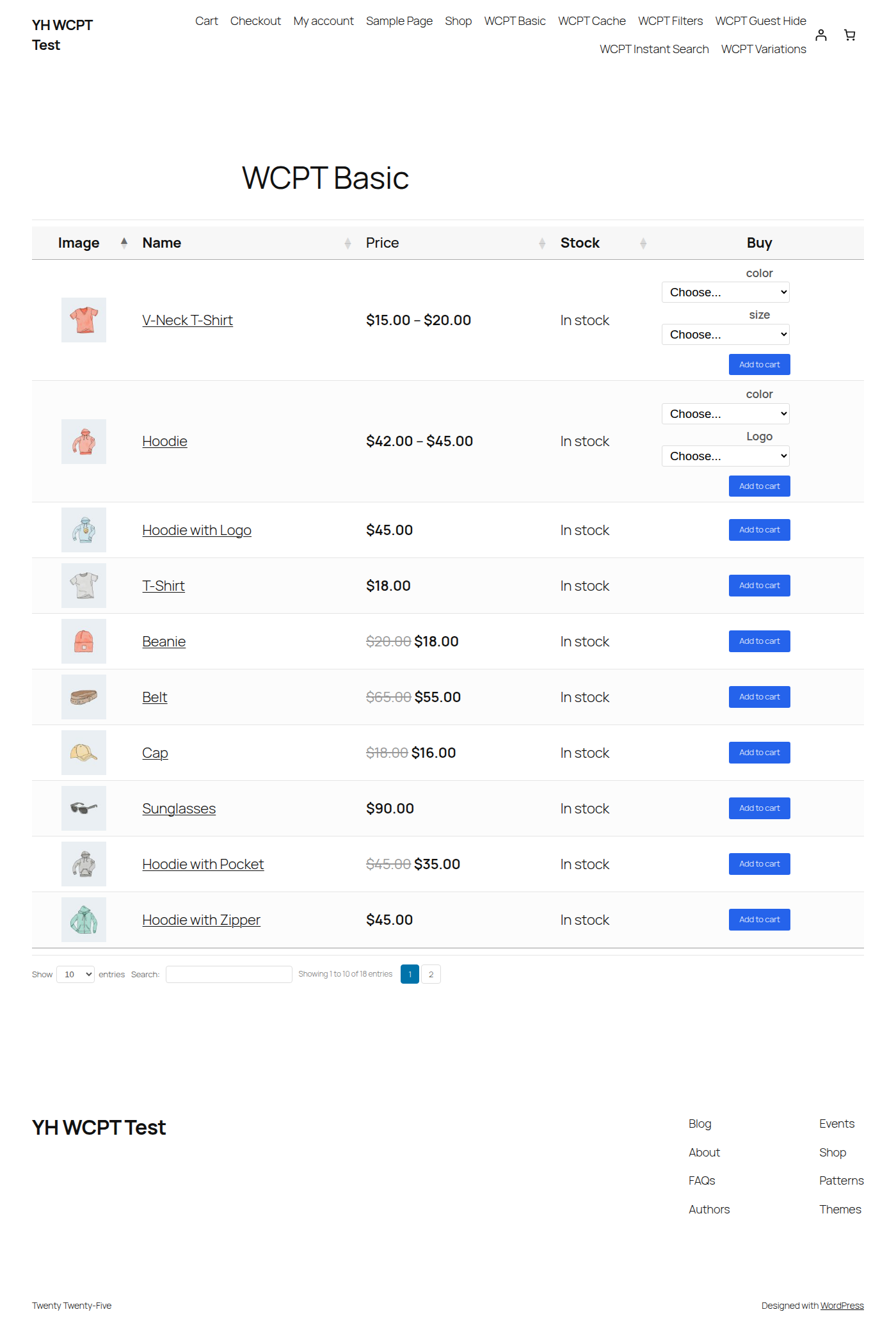
The picture is the Yoohoo demo page titled WCPT Basic, on a site named YH WCPT Test, with the Twenty Twenty-Five theme. Variable products such as the V-Neck T-Shirt and the Hoodie put choosers labelled color, size, or Logo in the Buy cell. Simple products show Add to cart only. Sale prices show the regular price struck through. The product names and prices belong to that demo catalog.
3. Check what shoppers see
Open the page in a private window, or log out, so you see the same table a shopper sees. WooCommerce’s product guide is the reference for publishing a product if a row is missing.
- Names link to the product page. The default for
linksisall. - Search sits under the table until you set
search_boxtotop,both, orfalse. With the default, search runs in the browser on rows already printed.instant_search="true"filters as someone types, without waiting for Enter. Products past the query limit are not in the table, so search cannot find them. - Page numbers and the totals line also sit at the bottom. The filter guide uses “Showing 1 to 25 of 80” as the shape of that line. The demo screenshot says 10 and 18 because that page is set to 10 rows.
- Add to cart stays on the page.
ajax_cartis on by default. Out-of-stock and non-purchasable products do not get a button. A variation row that is out of stock shows “Out of stock” instead. - On a variable product that stays on one row, the shopper picks each attribute in the Buy cell before Add to cart does anything. That is the default,
variations="dropdown".variations="rows"gives each variation its own row.variations="false"links to the product page instead. - Clicking a product image opens a larger view.
lightboxis on by default.
Quantity fields, checkboxes, and a cart bar stay off until you turn them on. quantities="true" is its own attribute. It is not a column. Writing quantities inside columns does not add a quantity box.
If Name Your Price for WooCommerce is active, the Buy cell also collects the amount on products that use it. Product Table has no extra attribute for that. The amount setup is in How to Let Customers Name Their Price in WooCommerce.
This table does not print a lead time. That text still belongs on the product, cart, or checkout through Lead Times for WooCommerce.
4. Add category and stock filters
The shortcode already prints the two dropdowns. View the page and confirm a category dropdown and a stock dropdown sit above the table.
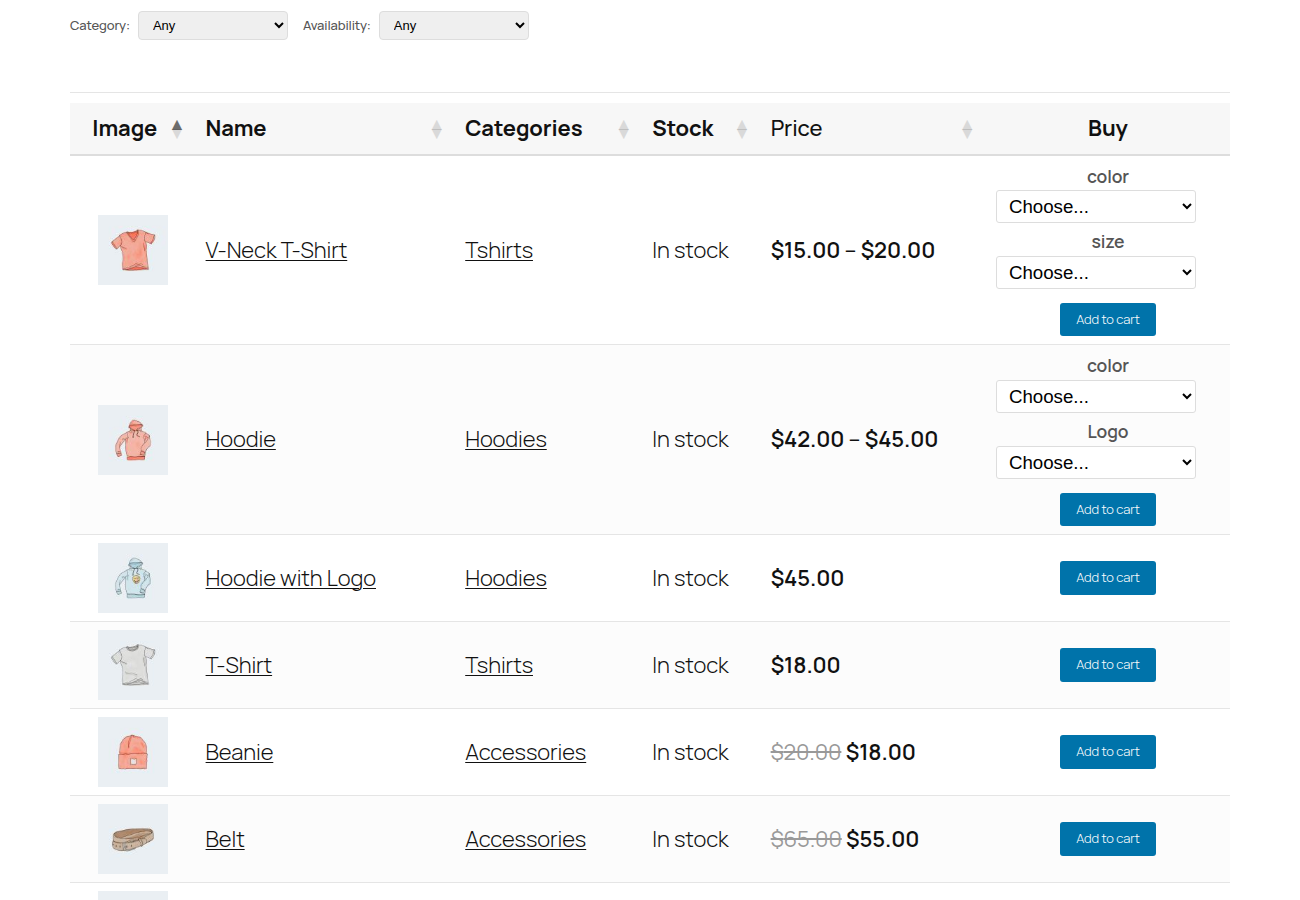
The demo labels the stock dropdown Availability. That word is a label, not a different filter. The attribute is still stock. The getting started guide shows the form stock:Availability, in the same way an attribute filter can be written att:color:Color. The columns in the picture are Image, Name, Categories, Stock, Price, and Buy, which matches the shortcode.
These dropdowns hide rows already loaded in the browser. The filter guide says they filter the current page of results and do not load a new set of products from WooCommerce. A category dropdown cannot reveal a product that category="hoodies" or product_limit already left out.
Use category="hoodies" when the table should open as one category. The value is the slug, not the name on the category screen. Use filters="categories" when the shopper should switch category inside a table that already contains those products.
reset_button="true" adds a Reset button. It clears the dropdowns, the search box, and the sort, and puts the table back to its original order.
5. Fix an empty table or a dead add to cart button
An empty table usually means the query never included the product.
- Confirm the product is published, not a draft or a hidden catalog item.
- Relax
category,tag,in_stock_only,min_price,max_price, orincludeif one of those is set. product_limitstops at 500 unless you raise it. The hard cap is 1000. For a large catalog,lazy_load="true"loads rows over AJAX so the first view stays smaller.- WooCommerce has to be active.
When Add to cart does nothing, check the variation first. The parent row needs a variation selected. Keep buy in columns, and leave ajax_cart="true". If the button still fails, test the same page with a default theme. Some themes break the WooCommerce cart fragments that update the page after an add.
This page shortcode does not replace the shop grid. Shop Integration is off until you turn it on under WooCommerce → Product Table → Shop Integration. Enable the shop, category, tag, search, or attribute archives you want. A normal shortcode on a category page does not inherit that category. For Elementor, Divi, or another archive template, choose Manual and place [yh_wcpt_archive_table] in the template. That shortcode takes no attributes. It uses the Shop Integration settings for the archive the shopper is on, including the current category, tag, search, or attribute.
The column guide lists SKU, custom fields, attributes, and guest-only hiding when you are ready to go past this first table. Guest hiding uses hide_columns_guest. The shortcode reference lists it with the attributes that are shortcode-only.
Conclusion
Start with one page, the column list above, and the two dropdowns. Check a simple product and a variable product while logged out. After that works, change the row count, the search box, or the shop archives.
Product Table for WooCommerce is the plugin used here. The getting started guide stays the setup reference this article does not replace.