
Getting Started: Product Table for WooCommerce
WooCommerce / Getting Started
Product Table for WooCommerce shows your catalog as a searchable, sortable table instead of the default grid. Use it on any page with a shortcode or Gutenberg block, or add it to shop, category, tag, search, and attribute archives.
Installation
WooCommerce must be installed and active. The plugin needs WordPress 6.0+, WooCommerce 5.0+, and PHP 7.4+.
- Download the zip from your purchase email or from File Downloads.
- In WordPress go to Plugins → Add New → Upload Plugin and upload the zip.
- Or unzip and copy the
yh-wc-product-tablefolder into/wp-content/plugins/. - Activate YH WC Product Table on the Plugins screen.
If WooCommerce is not active, WordPress will deactivate the plugin and show a notice. Activate WooCommerce first, then activate Product Table.
Activate your license
A license key is required for automatic updates and support.
- Copy the key from License keys or your purchase email.
- In WordPress go to WooCommerce → Product Table → License.
- Paste the key and save to activate it.
If the key shows as expired or “Register your copy”, see License shows expired or Register your copy.
Set table defaults
Open WooCommerce → Product Table → Table Defaults. These values apply to every table unless a shortcode or block overrides them.
| Setting | What it controls |
|---|---|
| Columns | Default column set and order. Pick from ID, SKU, image, name, description, price, stock, weight, dimensions, categories, tags, and add to cart. |
| Rows per page | How many products show before pagination. Shortcodes cap this at 200. |
| Design | Colour scheme: default, modern, classic, minimal, dark, green, purple, or red. |
| Table width | Normal (matches the shop grid) or full width. |
A shortcode such as columns="sku,name,price,buy" or design="dark" always wins over these defaults.
Add a table to a page
Gutenberg block
- Edit a page or post.
- Insert the Product Table block.
- Use the block sidebar for columns, layout, search, sorting, filters, and add to cart.
The block renders the same table as the shortcode. Anything you can set in the sidebar can also be set as a shortcode attribute.
Shortcode
Paste this into a page, post, or widget:
[yh_wc_product_table]That uses your Table Defaults (or the built-in defaults: image, name, summary, price, and buy). A typical catalog table:
[yh_wc_product_table columns="image,name,price,stock,buy" filters="categories,stock" sticky_header="true"]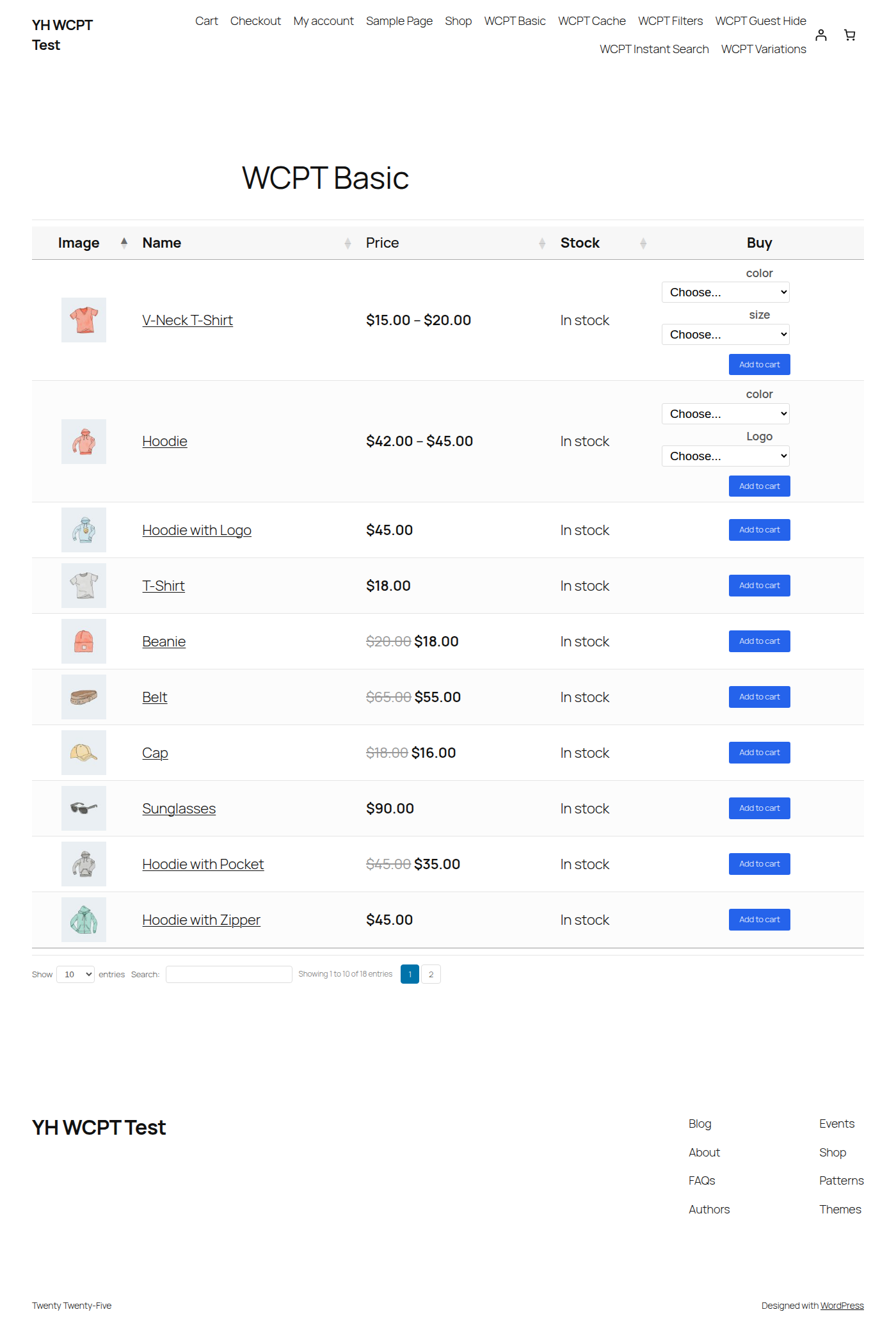
You can add the shortcode in Elementor, Divi, or any builder that accepts shortcodes.
Shop, category, and search pages
To show a table on WooCommerce archives, go to WooCommerce → Product Table → Shop Integration.
Table position
| Mode | What happens |
|---|---|
| Above grid | The table is injected above the default product grid. Both stay visible. |
| Below grid | The table is injected below the default product grid. Both stay visible. |
| Manual (shortcode only) | Nothing is injected. Put [yh_wcpt_archive_table] in your archive template or page builder. |
Page types
Enable each archive you want a table on. Leave columns and rows blank to use Table Defaults.
| Page type | Notes |
|---|---|
| Shop page | Main shop listing. |
| Category pages | Automatically filtered to the current category. |
| Tag pages | Automatically filtered to the current tag. |
| Search results | Uses the current product search. |
| Attribute pages | Brand, colour, size, and other attribute archives. |
Category, tag, and attribute tables inherit the current term. You do not need to pass category="" on those archives.
For Elementor Pro, Divi Theme Builder, or a custom archive template, choose Manual and add:
[yh_wcpt_archive_table]Columns
Set columns with the columns attribute. Order in the list is the order in the table.
| Column | Shows |
|---|---|
id | Product ID |
sku | SKU |
name | Product name, linked to the product page |
description | Full description |
summary | Short description |
image | Thumbnail. Default size is 70×70. Change with image_size="150x150" or a named size such as thumbnail. |
price | Regular / sale price |
buy | Add to cart control |
button | “Show details” button (label via button_text) |
categories | Linked categories |
tags | Linked tags |
stock | Stock status / quantity |
date | Publish date |
weight | Weight |
dimensions | L × W × H |
cf:field_name | Custom field (post meta) |
att:attribute_name | Product attribute, e.g. att:color |
tax:taxonomy_name | Custom taxonomy terms, e.g. tax:product_brand |
Rename a heading with column:Heading:
[yh_wc_product_table columns="sku:Code,name:Item,price:Cost,buy:Add"]Hide price or buy from guests:
[yh_wc_product_table columns="sku,name,price,buy" hide_columns_guest="price,buy"]Filters, search, and sorting
Search, pagination, and “showing X of Y” are on by default. Filters are optional dropdowns above the table.
| Filter | Dropdown |
|---|---|
categories | Product category |
tags | Product tag |
stock | Stock status |
att:name | Attribute, e.g. att:color |
tax:name | Custom taxonomy |
[yh_wc_product_table columns="image,name,att:color,att:size,stock,price,buy" filters="categories,att:color:Color,att:size:Size,stock:Availability" reset_button="true"]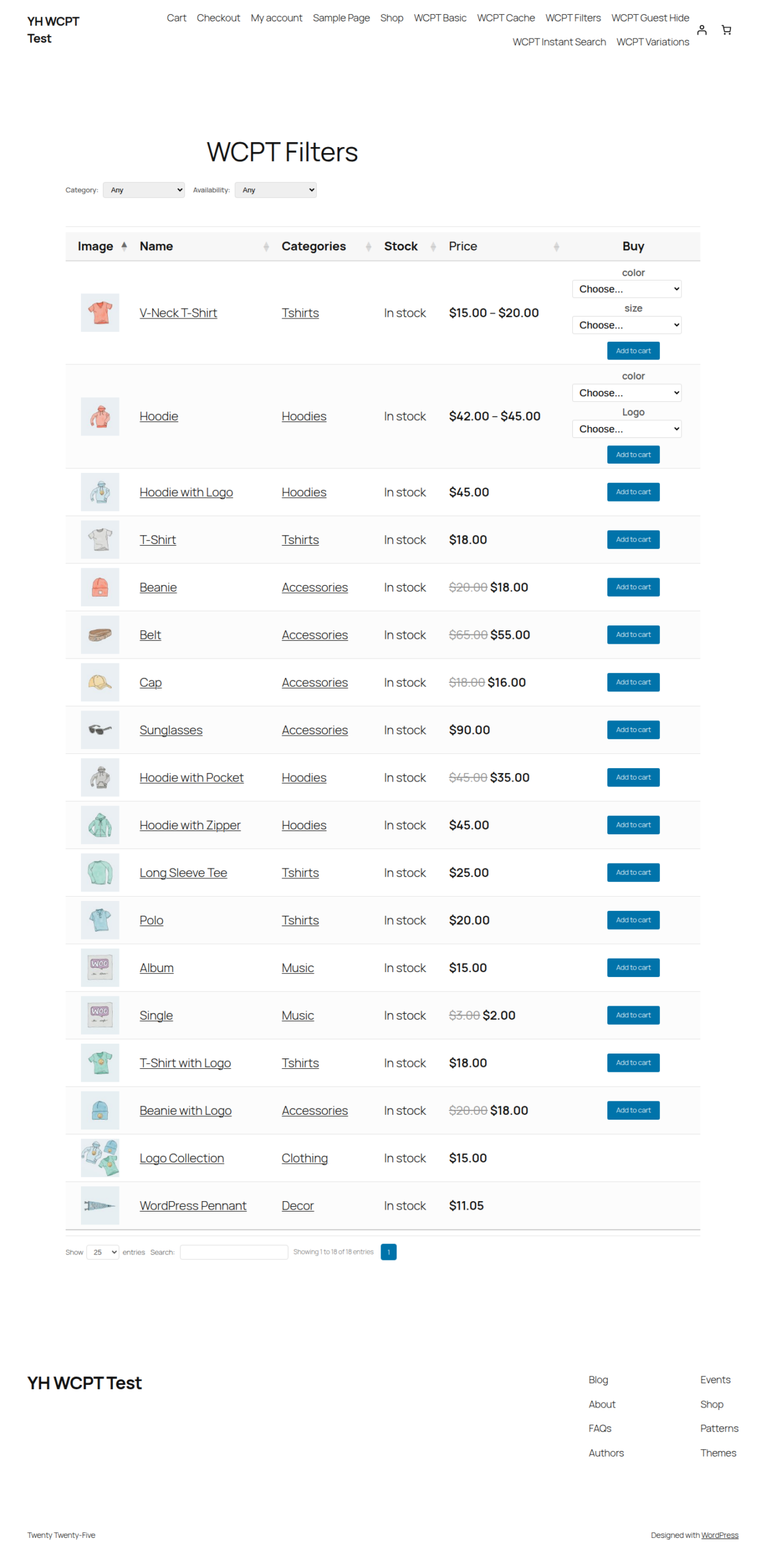
| Attribute | Default | Notes |
|---|---|---|
search_box | true (bottom) | true, false, top, bottom, both |
instant_search | false | Filter as the customer types, without pressing Enter |
pagination | bottom | Same position values as search |
load_more | false | Replace numbered pagination with a load more button |
sort_by | menu_order | Column name to sort on first load |
sort_order | asc | asc or desc |
sticky_header | false | Keep the header visible while scrolling |
Limit which products are queried before the table renders:
| Attribute | Example |
|---|---|
category | category="clothing" — comma-separated slugs |
exclude_category | exclude_category="sale" |
tag | tag="organic" |
include / exclude | Product IDs, comma-separated |
product_type | simple, variable, grouped, external |
min_price / max_price | min_price="10" max_price="100" |
in_stock_only | true |
on_sale_only | true |
featured_only | true |
Variable products
variations | Behaviour |
|---|---|
dropdown | One row for the parent. Customers pick attributes from dropdowns (default). |
rows | Each variation is its own row. |
false | Link through to the product page instead of adding from the table. |
When using variations="rows", control the name with variation_name_format:
| Format | Example |
|---|---|
name_attributes | T-Shirt – Blue, Large (default) |
name_only | T-Shirt |
attributes_only | Blue, Large |
[yh_wc_product_table variations="rows" variation_name_format="attributes_only" columns="image,name,att:color,att:size,price,buy"]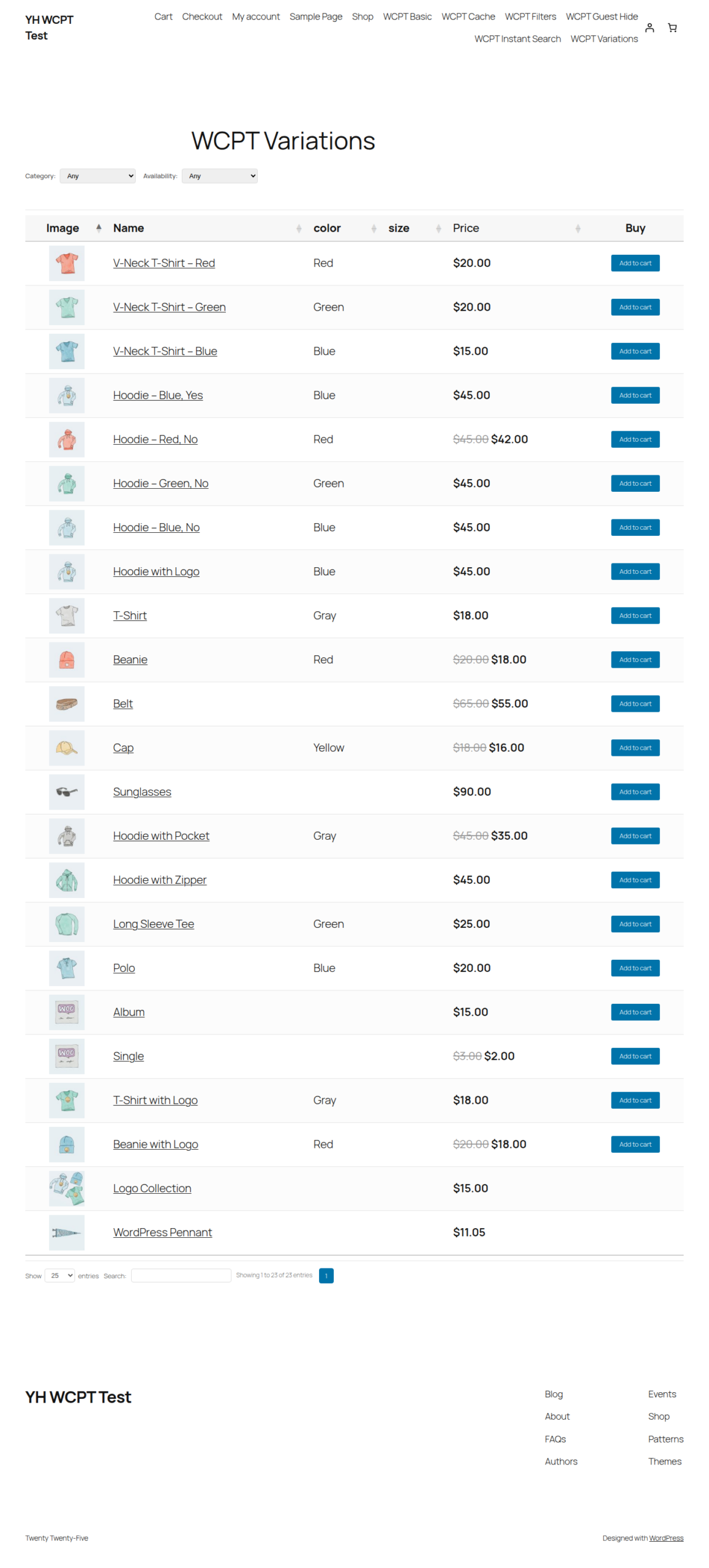
Add to cart and wholesale-style tables
AJAX add to cart is on by default. Quantity inputs are off until you enable them.
| Attribute | Values | Notes |
|---|---|---|
cart_button | button, checkbox, button_checkbox | Checkbox modes need a buy column |
quantities | true / false | Show a qty field next to add to cart. This is not a column name. |
ajax_cart | true / false | Add without a full page reload |
multi_add | true / false | Add several selected rows at once |
direct_checkout | true / false | Skip the cart and go to checkout |
footer_cart | true / false | Cart summary under the table |
floating_cart | true / false | Floating cart button |
quick_view | true / false | Modal with product details |
Wholesale-style order form:
[yh_wc_product_table columns="sku,name,stock,price,buy" cart_button="checkbox" quantities="true" multi_add="true" footer_cart="true" rows_per_page="100" width="full"]Design and layout
| Template | Look |
|---|---|
default | Clean, follows the theme |
modern | Rounded, contemporary |
classic | Solid borders |
minimal | Light styling |
dark | Dark background |
green / purple / red | Accent colour schemes |
Width: normal (theme content width), wide, or full. Full width still depends on the theme container. If it does not break out, add:
.yh-wc-product-table-container.width-full {
    max-width: none !important;
    width: 100vw;
    margin-left: calc(50% - 50vw);
    margin-right: calc(50% - 50vw);
    padding: 0 20px;
}
Hide columns on smaller screens with responsive_visibility. Values are desktop or tablet — the named device is the smallest size that still shows the column:
[yh_wc_product_table columns="image,name,sku,stock,price,buy" responsive_visibility="sku:desktop,stock:tablet"]Shortcode reference
Most-used attributes. Anything not listed here still works; the plugin’s Shortcode Examples tab under WooCommerce → Product Table has more copy-paste snippets.
| Attribute | Default | Notes |
|---|---|---|
columns | image,name,summary,price,buy | Comma-separated. Custom headings: name:Item |
rows_per_page | 25 | Max 200. Use -1 for all rows in the queried set |
product_limit | 500 | Max products queried. Hard cap 1000 |
width | normal | normal, wide, full |
design | default | See design templates above |
filters | off | e.g. categories,stock,att:color |
lazy_load | false | Load rows over AJAX. Useful on large catalogs |
cache | false | Cache the product query |
lightbox | true | Click image to enlarge |
links | all | all, none, or column names |
custom_class | — | Extra CSS class on the wrapper |
Search is client-side (DataTables) unless you enable lazy_load="true". For catalogs approaching the product limit, turn lazy load on so the first paint stays small.
Common mistakes
Table is empty
The shortcode only lists published WooCommerce products. Hidden, draft, or out-of-query products will not appear.
Fix: Confirm products are published, in the category/tag you filtered, and that WooCommerce is active. Relax category, in_stock_only, or include if those are set.
Add to cart does nothing
Variable products need a variation selected. Checkbox / multi-add needs a buy column. Some themes break WooCommerce cart fragments.
Fix: Keep ajax_cart="true". For variables use variations="dropdown" or rows. Include buy in columns. Test with a default theme if the button still fails.
Putting quantities in the columns list
quantities is a shortcode attribute, not a column. columns="…,quantities,buy" will not add a qty field.
Fix: Use quantities="true" and keep buy in the column list.
Shop grid never becomes a table
Shop Integration is off by default. Page-builder archives often ignore the automatic injection.
Fix: Enable the page type under Shop Integration. If the theme uses Elementor or Divi for the shop, switch to Manual and place [yh_wcpt_archive_table] in that template.
License key not saving updates
The updater talks to yoohooplugins.com. A 1 Site license only holds one activation.
Fix: Activate under WooCommerce → Product Table → License. Deactivate the old site first if you moved. See staging and multisite licenses.