

Table of Contents
- What You Need
- Confirm Login Tracking
- Install the Export Add-on
- Open the Export Screen
- Choose the Data Set and Format
- Check the Download
- Handle Exported Login Data Carefully
- Frequently Asked Questions
- Conclusion
If you need a file of WordPress login activity, the free When Last Login – Export User Records add-on can download either the full login history or a summary of users and their most recent login. This guide shows which export to choose, how to download it as CSV or JSON, and what to check before you share the file.
What You Need
- When Last Login: Install and activate the free When Last Login plugin.
- Export User Records: Install and activate the free When Last Login – Export User Records add-on. It depends on the main plugin.
- Administrator access: The export screen is in the WordPress admin area.
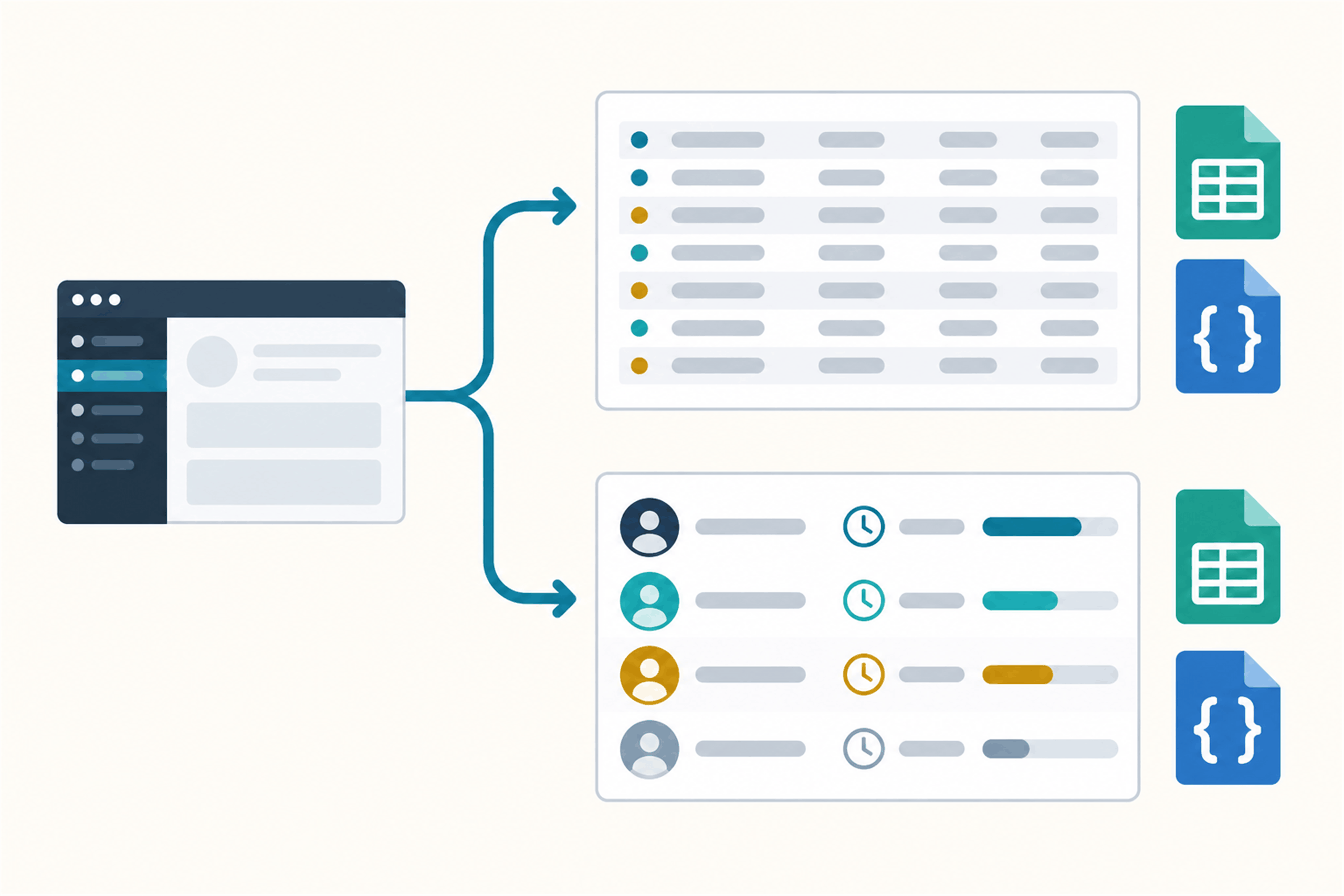
The add-on offers two data sets. Login records contain a row for each recorded login. User records contain one summary row per WordPress user, including the last login and login count. Both data sets can be downloaded as CSV or JSON.
Step 1: Confirm Login Tracking Is Active
The add-on exports data collected by When Last Login. It does not create history for logins that happened before tracking was active. After activating the main plugin, let a test account sign in normally. Then open the login-records export and check that the expected activity appears.
If a person is missing, confirm that their sign-in method is recorded by When Last Login before relying on an export for a report. Start with How to Track a WordPress User’s Last Login Date if tracking is not yet working.
Step 2: Install and Activate the Export Add-on
In WordPress, go to Plugins → Add New Plugin and search for When Last Login – Export User Records. Install and activate it. You can also download the add-on from its WordPress.org page and upload the ZIP through the Plugins screen.
Keep the main When Last Login plugin active. The export add-on relies on it for the settings tab and the login data.
Step 3: Open the Export Screen
In the WordPress admin menu, open When Last Login and select the Export User Records tab. The screen presents two sections:
- Export All Login Records for the login history.
- Export All User Records for one summary row per WordPress user.
Choose the data set before choosing a format. A CSV or JSON file can contain either data set; the format does not change which records are included.
Step 4: Choose the Data Set and Format
Under the section you need, select Export to CSV or Export to JSON.
Export All Login Records
Choose this when you need to review individual login events. The export contains the login record title, user name, email address, date, and IP address field. If an IP address was not recorded, the plugin labels that field “No IP Address Recorded.”
Export All User Records
Choose this when you need a compact list of accounts. The export contains each user’s display name, email address, last login, and login count. Accounts without a recorded login are marked Never.
The user-record export prints the last login as Y-m-d H:i:s. In the published 1.1 release, that value is formatted with PHP date(), so do not assume it matches the timezone selected in WordPress. Compare a known login before using those times in a report. The login-history export uses the WordPress date format configured for the site.
CSV or JSON?
- CSV is convenient for opening in a spreadsheet and sorting or filtering rows. Check the column headings and date values after opening it.
- JSON is useful when another tool expects structured data. Inspect the downloaded file before importing it: the add-on’s JSON output begins with a list of field names followed by the exported records.
If you are unsure, start with CSV for a manual review. Use JSON when you know the receiving tool accepts this export’s structure.
Step 5: Check the Download Before Using It
Open the file and confirm that it contains the data set you intended to export. Check that the fields are present and that “Never” values are understood as accounts without a stored login.
The add-on exports the available records; it does not offer a date-range selector on this screen. If you need activity for a particular period, filter or sort the file after downloading it.
Handle Exported Login Data Carefully
These files can contain names, email addresses, login dates, and, when enabled and available, IP addresses. Store the export where only the people who need it can access it. Share only the fields and rows needed for the task, and delete temporary copies when you are finished.
Do not email a full user export to a broad list just because CSV is easy to open. A file is still personal data even after it leaves WordPress.
Frequently Asked Questions
Does the export add-on work on its own?
No. The main When Last Login plugin must also be installed and active.
Can I export only login records or only user summaries?
Yes. The screen has separate buttons for all login records and all user records. Choose the relevant section before selecting CSV or JSON.
Does CSV include IP addresses?
The login-record export has an IP address field. If the site did not record an address for an event, the export marks it as “No IP Address Recorded.”
Is this the same as the User Statistics report?
No. Export User Records downloads login events or per-user records as CSV or JSON. When Last Login User Statistics is a separate add-on and report workflow.
Conclusion
Choose login records for an event-by-event history, or user records for the latest-login summary. Then pick CSV for spreadsheet review or JSON for a compatible tool. Check the file contents and protect it because it can include personal information.
For a different view of login activity, read our guide to When Last Login User Statistics reports.